图像(01):现代图像 API 深度解析
图像是网页内容的重要组成部分,用于展示信息、增强视觉效果和提升用户体验。<img> 标签是 HTML 中最重要的媒体元素之一,正确使用图像属性和现代技术可以显著提升页面性能和用户体验。
学习目标:
- 掌握
<img>标签的完整属性体系和使用方法 - 理解响应式图像的实现原理和最佳实践
- 能够优化图像加载性能,提升页面体验
- 掌握图像的可访问性要求和 SEO 最佳实践
- 了解现代图像格式和工具链的使用
基本语法
<img> 是个自闭合标签,src 属性指定图像文件的路径,alt 属性提供图像的替代文本(强烈建议始终提供)
html
<img src="图像文件的地址" alt="替代文本" />以下思维导图梳理了 <img> 标签的完整属性体系,帮助建立全局认知:
图表渲染中…
属性速查表:
| 属性 | 作用 | 常见取值/说明 | 说明 |
|---|---|---|---|
src | 图像源地址 | 相对路径或绝对 URL | 必填 |
alt | 替代文本 | 描述性文本 | 必填(可访问性和 SEO) |
title | 提示文字 | 描述性文本 | 鼠标悬停时显示 |
width | 图像宽度 | 像素值或百分比 | 建议 CSS 控制尺寸 |
height | 图像高度 | 像素值或百分比 | 建议 CSS 控制尺寸 |
loading | 懒加载 | lazy、eager | 性能优化,默认 eager |
decoding | 解码方式 | async、sync、auto | 性能优化,默认 auto |
srcset | 响应式图像源集 | 多个图像源和描述符(1x、2x 或 400w、800w) | 响应式设计 |
sizes | 响应式图像尺寸 | 媒体查询和尺寸描述 | 配合 srcset 使用 |
usemap | 图像映射 | #map-name | 图像热区链接 |
ismap | 服务器端图像映射 | 布尔值 | 较少使用 |
crossorigin | 跨域设置 | anonymous、use-credentials | CORS 相关 |
referrerpolicy | 引荐来源策略 | no-referrer、origin、strict-origin-when-cross-origin 等 | 隐私控制 |
fetchpriority | 获取优先级 | high、low、auto | 性能优化,默认 auto |
intrinsicsize | 固有尺寸 | 宽度 x 高度(如 400x300) | 实验性,用于布局稳定性 |
importance | 资源重要性 | high、low、auto | 已废弃,使用 fetchpriority 替代 |
WARNING
以下属性在 HTML5 中已废弃,应使用 CSS 替代:
border:使用 CSSborder属性align:使用 CSSvertical-align和floathspace、vspace:使用 CSSmargin
图像路径与资源组织
在实际项目中,图像文件通常会存放在单独的资源目录中,例如 images、assets/images 等。合理组织路径可以避免「本地能显示、线上不显示」等问题。
- 相对路径:相对于当前 HTML 文件的位置,例如
./images/logo.png、../images/bg.jpg - 绝对路径:从网站根目录开始,例如
/images/logo.png - 完整 URL:包含协议和域名,例如
https://example.com/images/logo.png
常见推荐做法:
- 为静态资源单独建立目录,如
/assets/images、/static/img - 线上环境使用 CDN 地址提供图像,例如
https://cdn.example.com/img/... - 统一命名规范(小写、短横线分隔),方便管理和搜索
当图像来自其他站点时,如果需要在 <canvas> 中使用或读取像素信息,需要配合 crossorigin 和服务器端的 CORS 配置,否则会触发安全限制。
图像属性
图像尺寸(width、height)
width 和 height 属性用于设置图像的显示尺寸。在现代 Web 开发中,建议使用 CSS 来控制图像尺寸,但 HTML 属性仍有其用途
html
<img src="image.jpg" width="300" height="200" alt="示例图像" />
<img src="image.jpg" alt="示例图像" class="responsive-img" />
<style>
  .responsive-img {
    width: 100%;
    max-width: 300px;
    height: auto; /* 保持宽高比 */
  }
</style>
重要提示:
- 防止布局偏移(CLS):设置
width和height属性可以帮助浏览器预留空间,减少累积布局偏移(Cumulative Layout Shift),提升页面性能评分。
html
<!-- ✅ 推荐:设置宽高属性 -->
<img src="image.jpg" width="300" height="200" alt="图像" style="max-width: 100%; height: auto;" />- 响应式图像:使用 CSS 实现响应式,同时保留 HTML 属性作为提示。
html
<img
  src="image.jpg"
  width="800"
  height="600"
  alt="响应式图像"
style="width: 100%; height: auto; max-width: 800px;" />- 宽高比:如果只设置宽度或高度,浏览器会按比例调整另一个维度。
图像边框(border)
DANGER
border 属性在 HTML5 中已废弃,应使用 CSS border 属性。
❌ 废弃方式:
html
<img src="image.jpg" border="2" alt="图像" />✅ 推荐方式:
html
<img src="image.jpg" alt="图像" class="bordered" />
<style>
  .bordered {
    border: 2px solid #333;
    border-radius: 4px;
  }
</style>
html
<!DOCTYPE html>
<html lang="zh-CN">
  <head>
    <meta charset="UTF-8" />
    <meta name="viewport" content="width=device-width, initial-scale=1.0" />
    <title>设置主图和缩略图的大小并添加边框</title>
    <style>
      .image-container {
        max-width: 1100px;
        margin: 0 auto;
        padding: 20px;
        text-align: center;
      }

      .main-image {
        width: 350px;
        height: 350px;
        margin-bottom: 10px;
        border: none;
        border-radius: 4px;
      }

      .thumbnail-image {
        width: 50px;
        height: 50px;
        margin: 0 5px;
        border: 2px solid #333;
        border-radius: 4px;
        cursor: pointer;
        transition: border-color 0.2s;
      }

      .thumbnail-image:hover {
        border-color: #1890ff;
      }
    </style>
  </head>
  <body>
    <div class="image-container">
      <!-- 主图:无边框 -->
      <img src="images/img.jpg" alt="产品主图" width="350" height="350" class="main-image" />
      <br />

      <!-- 缩略图:有边框 -->
      <img src="images/img.jpg" alt="缩略图1" width="50" height="50" class="thumbnail-image" />
      <img src="images/img2.jpg" alt="缩略图2" width="50" height="50" class="thumbnail-image" />
      <img src="images/img3.jpg" alt="缩略图3" width="50" height="50" class="thumbnail-image" />
    </div>
  </body>
</html>
图像间距(hspace、vspace)
DANGER
hspace 和 vspace 属性在 HTML5 中已废弃,应使用 CSS margin 属性。
❌ 废弃方式:
html
<img src="image.jpg" hspace="20" vspace="20" alt="图像" />✅ 推荐方式:
html
<img src="image.jpg" alt="图像" class="spaced" />
<style>
  .spaced {
    margin: 20px; /* 四个方向 */
    /* 或 */
    margin-left: 20px;
    margin-right: 20px;
    margin-top: 20px;
    margin-bottom: 20px;
  }
</style>
文字环绕图像的间距示例:
html
<!DOCTYPE html>
<html lang="zh-CN">
  <head>
    <meta charset="UTF-8" />
    <title>图像与文字间距</title>
    <style>
      .article {
        max-width: 800px;
        margin: 0 auto;
      }
      .article img {
        float: left;
        margin-right: 20px;
        margin-bottom: 20px;
        max-width: 300px;
      }
    </style>
  </head>
  <body>
    <article class="article">
      <img src="image.jpg" alt="示例图像" />
      <p>
        这是一段文字内容,文字会环绕在图像的右侧。通过 CSS margin
        属性,我们可以精确控制图像与文字之间的间距,使布局更加美观和协调。
      </p>
    </article>
  </body>
</html>
使用示例:
<img src="https://zhangzhengyang.oss-cn-beijing.aliyuncs.com/images/202505230333405.png" alt="图像间距设置效果:头像列表不同间距方案对比" style="zoom:50%;" />html
<!DOCTYPE html>
<html lang="zh-CN">
  <head>
    <meta charset="UTF-8" />
    <meta name="viewport" content="width=device-width, initial-scale=1.0" />
    <title>设置图像的间距</title>
    <style>
      body {
        font-family: -apple-system, BlinkMacSystemFont, "Segoe UI", sans-serif;
      }

      .section {
        margin-bottom: 40px;
      }

      .section-title {
        font-size: 16px;
        margin-bottom: 10px;
        color: #333;
      }

      /* 基础图像样式 */
      .avatar {
        width: 100px;
        height: 100px;
        border: 2px solid #333;
        border-radius: 4px;
      }

      /* 不设置间距(使用默认 inline 间距) */
      .no-spacing .avatar {
        margin: 0;
      }

      /* 设置垂直间距 */
      .vertical-spacing .avatar {
        margin-top: 20px;
        margin-bottom: 20px;
      }

      /* 设置水平间距 */
      .horizontal-spacing .avatar {
        margin-left: 20px;
        margin-right: 20px;
      }

      /* 推荐方式:使用 Flexbox */
      .flex-spacing {
        display: flex;
        gap: 20px;
        align-items: center;
      }

      .flex-spacing .avatar {
        margin: 0;
      }
    </style>
  </head>
  <body>
    <h3>请选择您喜欢的头像:</h3>
    <hr />

    <!-- 方式 1:不设置间距 -->
    <div class="section">
      <div class="section-title">不设置间距(默认 inline 间距)</div>
      <div class="no-spacing">
        <img src="images/avator.png" alt="头像1" class="avatar" />
        <img src="images/avator.png" alt="头像2" class="avatar" />
        <img src="images/avator.png" alt="头像3" class="avatar" />
        <img src="images/avator.png" alt="头像4" class="avatar" />
      </div>
    </div>

    <!-- 方式 2:设置垂直间距 -->
    <div class="section">
      <div class="section-title">设置垂直间距(margin-top + margin-bottom)</div>
      <div class="vertical-spacing">
        <img src="images/avator.png" alt="头像1" class="avatar" />
        <img src="images/avator.png" alt="头像2" class="avatar" />
        <img src="images/avator.png" alt="头像3" class="avatar" />
        <img src="images/avator.png" alt="头像4" class="avatar" />
      </div>
    </div>

    <!-- 方式 3:设置水平间距 -->
    <div class="section">
      <div class="section-title">设置水平间距(margin-left + margin-right)</div>
      <div class="horizontal-spacing">
        <img src="images/avator.png" alt="头像1" class="avatar" />
        <img src="images/avator.png" alt="头像2" class="avatar" />
        <img src="images/avator.png" alt="头像3" class="avatar" />
        <img src="images/avator.png" alt="头像4" class="avatar" />
      </div>
    </div>

    <!-- 方式 4:推荐 - 使用 Flexbox -->
    <div class="section">
      <div class="section-title">✅ 推荐方式:使用 Flexbox + gap</div>
      <div class="flex-spacing">
        <img src="images/avator.png" alt="头像1" class="avatar" />
        <img src="images/avator.png" alt="头像2" class="avatar" />
        <img src="images/avator.png" alt="头像3" class="avatar" />
        <img src="images/avator.png" alt="头像4" class="avatar" />
      </div>
    </div>
  </body>
</html>
图片之间的间距
在 HTML 中 <img>标签之间存在默认间距,这主要是由于 HTML 的默认样式以及浏览器渲染规则导致的
- 行内元素特性:
<img>标签默认是行内元素(display: inline)。行内元素之间会存在一定的空白间隙,这个间隙是由 HTML 代码中的换行符、空格等空白字符引起的。即使你在代码中没有明显看到空格,换行本身也会被浏览器解析为一个空白字符。 - 基线对齐:行内元素默认会按照基线(baseline)对齐,这可能会导致元素之间出现一些额外的空间。
解决方法
- 去除 HTML 中的空白字符:将
<img>标签之间的换行符和空格删除,这样就不会产生由空白字符引起的间距
html
<div>
  不设置间距<img src="images/avator.png" alt="头像" style="border: 2px solid #333;" /><img
    src="images/avator.png"
    alt="头像"
    style="border: 2px solid #333;" /><img
    src="images/avator.png"
    alt="头像"
    style="border: 2px solid #333;" /><img
    src="images/avator.png"
    alt="头像"
    style="border: 2px solid #333;" />
</div>- 使用 CSS 的
font-size: 0:将包含<img>标签的父元素的font-size设置为 0,这样可以消除空白字符的影响。然后再为<img>标签单独设置合适的font-size(如果需要的话)
html
<!DOCTYPE html>
<html lang="zh-CN">
  <head>
    <meta charset="UTF-8" />
    <title>设置图像的间距</title>
    <style>
      .avatar-list {
        font-size: 0; /* 消除空白字符影响 */
      }

      .avatar {
        width: 100px;
        height: 100px;
        border: 2px solid #333;
        border-radius: 4px;
      }

      .title {
        font-size: 16px;
        margin-bottom: 10px;
      }
    </style>
  </head>
  <body>
    <h3>请选择您喜欢的头像:</h3>
    <hr />

    <div class="avatar-list">
      <span class="title">不设置间距</span>
      <img src="images/avator.png" alt="头像1" class="avatar" />
      <img src="images/avator.png" alt="头像2" class="avatar" />
      <img src="images/avator.png" alt="头像3" class="avatar" />
      <img src="images/avator.png" alt="头像4" class="avatar" />
    </div>
  </body>
</html>- ✅ 推荐:使用 CSS 的
display: flex:将父元素设置为display: flex,这样可以更灵活地控制子元素的间距。
html
<!DOCTYPE html>
<html lang="zh-CN">
  <head>
    <meta charset="UTF-8" />
    <title>设置图像的间距</title>
    <style>
      .img-container {
        display: flex;
        gap: 20px; /* 设置子元素之间的间距 */
      }
      .img-container img {
        width: 100px;
      }
    </style>
  </head>
  <body>
    <h3>请选择您喜欢的头像:</h3>
    <hr size="2" />
    <div class="img-container">
      不设置间距
      <img src="images/avator.png" border="2" />
      <img src="images/avator.png" border="2" />
      <img src="images/avator.png" border="2" />
      <img src="images/avator.png" border="2" />
    </div>
  </body>
</html>
图像相对于文字基准线的对齐方式
图像相对于文字基准线的对齐方式通过 align 属性进行设置。<img src="图像文件的地址" align="相对文字的对齐方式">
top:将图片的顶部与相邻文本行的顶部对齐middle:将图片的中部与相邻文本行的基线对齐。基线是指文本行中字母的底部,对于大多数字体来说,基线位于文本行的中部偏下位置bottom:将图片的底部与相邻文本行的底部对齐left:将图片对齐到其容器的左侧,并使文本环绕在图片的右侧right:将图片对齐到其容器的右侧,并使文本环绕在图片的左侧
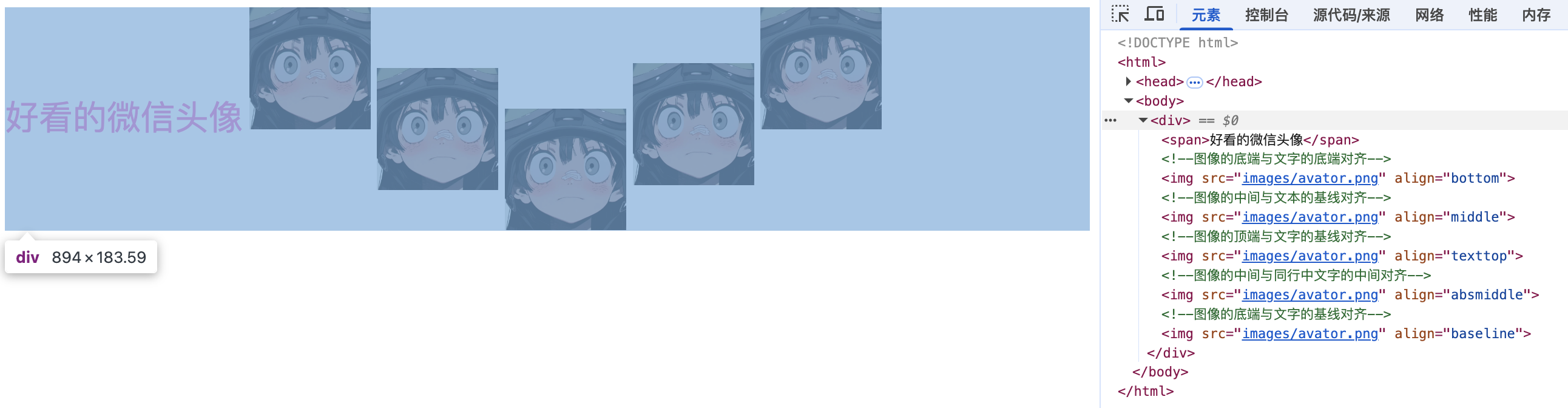
html
<!DOCTYPE html>
<html>
  <head>
    <meta charset="utf-8" />
    <title>图像与文字的相对位置</title>
    <style>
      img {
        width: 100px;
      }

      span {
        font-size: 28px;
        color: #ff66cc;
      }
    </style>
  </head>
  <body>
    <div>
      <span>好看的微信头像</span>
      <!--图像的底端与文字的底端对齐-->
      <img src="images/avator.png" align="bottom" />
      <!--图像的中间与文本的基线对齐-->
      <img src="images/avator.png" align="middle" />
      <!--图像的顶端与文字的基线对齐-->
      <img src="images/avator.png" align="texttop" />
      <!--图像的中间与同行中文字的中间对齐-->
      <img src="images/avator.png" align="absmiddle" />
      <!--图像的底端与文字的基线对齐-->
      <img src="images/avator.png" align="baseline" />
    </div>
  </body>
</html>
DANGER
在 HTML5 中,<img> 标签的 align 属性已经被废弃。取而代之的是使用 CSS 来控制图片的对齐和布局。例如,可以使用 vertical-align 属性来实现垂直对齐,使用 float 属性来实现水平对齐和文本环绕效果
CSS 替代方法:
- 垂直对齐:
vertical-align: top;、vertical-align: middle;、vertical-align: bottom; - 水平对齐和文本环绕:
float: left;、float: right;
兼容性和样式控制:使用 CSS 来控制图片的对齐和布局可以提供更灵活的样式定制,并且可以更好地适应不同的屏幕和设备。此外,CSS 样式可以集中管理,便于维护和更新
alt 属性(替代文本)
alt 属性是图像最重要的属性之一,用于提供图像的文本描述。它对于可访问性、SEO 和用户体验都至关重要。
作用:
- 可访问性:屏幕阅读器会读取
alt文本,帮助视障用户理解图像内容 - 图像加载失败:当图像无法加载时,浏览器会显示
alt文本 - SEO:搜索引擎使用
alt文本理解图像内容,有助于图片搜索排名
最佳实践:
html
<!-- ✅ 信息性图像:提供有意义的描述 -->
<img src="product.jpg" alt="红色苹果 iPhone 14 Pro,128GB 存储" />

<!-- ✅ 装饰性图像:使用空 alt -->
<img src="decorative-line.png" alt="" />

<!-- ✅ 功能性图像:描述功能 -->
<img src="search-icon.png" alt="搜索" />
<a href="/search">
  <img src="search-icon.png" alt="搜索" />
</a>

<!-- ❌ 避免:冗余描述 -->
<img src="product.jpg" alt="产品图片" />

<!-- ❌ 避免:使用文件名 -->
<img src="img_001.jpg" alt="img_001.jpg" />

<!-- ❌ 避免:过于冗长 -->
<img
  src="chart.jpg"
  alt="这是一个显示2023年第一季度到第四季度销售额的柱状图,其中第一季度销售额为100万,第二季度为120万,第三季度为150万,第四季度为180万" />
<!-- ✅ 改进 -->
<img src="chart.jpg" alt="2023年季度销售额柱状图,呈上升趋势" />
alt 文本编写指南:
- 信息性图像:简洁准确地描述图像内容和目的
- 装饰性图像:使用空字符串
alt="",并考虑添加role="presentation"或aria-hidden="true" - 功能性图像:描述图像的功能而非外观
- 复杂图像:提供简要描述,详细内容可在周围文本中说明
- 避免:以"图片"、"图像"、"图标"等词开头(屏幕阅读器会自动说明)
title 属性(提示文字)
title 属性用于提供额外的提示信息,当用户将鼠标悬停在图像上时会显示。
使用场景:
html
<!-- 提供额外信息 -->
<img src="product.jpg" alt="iPhone 14 Pro" title="点击查看详细规格和价格" />

<!-- 版权信息 -->
<img src="photo.jpg" alt="城市夜景" title="© 2024 摄影师姓名" />
注意事项:
- 不要依赖 title:
title属性在移动设备上不可用,不应作为主要信息源 - alt 优先:始终提供有意义的
alt属性,title仅作为补充 - 避免重复:
title不应简单重复alt的内容
alt 与 title 的区别:
| 属性 | 用途 | 显示时机 | 可访问性 | 必需性 |
|---|---|---|---|---|
| alt | 替代文本 | 图像无法加载时 | 是 | 是 |
| title | 提示信息 | 鼠标悬停时 | 否 | 否 |
完整示例:
html
<!DOCTYPE html>
<html lang="zh-CN">
  <head>
    <meta charset="UTF-8" />
    <title>图像 alt 和 title 示例</title>
  </head>
  <body>
    <!-- 信息性图像 -->
    <figure>
      <img
        src="sunset.jpg"
        alt="海边日落,橙色和粉色的天空倒映在海面上"
        title="拍摄于2024年1月,使用 Canon EOS R5" />
      <figcaption>美丽的日落景色</figcaption>
    </figure>

    <!-- 装饰性图像 -->
    <div class="header">
      <img src="pattern.png" alt="" aria-hidden="true" />
      <h1>网站标题</h1>
    </div>

    <!-- 功能性图像 -->
    <button type="button">
      <img src="print-icon.png" alt="打印" />
    </button>
  </body>
</html>
响应式图像
响应式图像是现代 Web 开发的重要特性,可以根据设备屏幕大小、像素密度等因素自动选择合适的图像。
<h4>030-responsive-image-srcset.html</h4>html
<!-- 来源:5-图像.md - 响应式图像 srcset/sizes -->
<!DOCTYPE html>
<html lang="zh-CN">
<head>
<meta charset="UTF-8">
<meta name="viewport" content="width=device-width, initial-scale=1.0">
<title>响应式图像 - srcset 与 sizes</title>
<style>
* {
margin: 0;
padding: 0;
box-sizing: border-box;
}
body {
font-family: -apple-system, BlinkMacSystemFont, "Segoe UI", sans-serif;
line-height: 1.6;
color: #333;
background: #f5f7fa;
padding: 40px 20px;
}
.container {
max-width: 1000px;
margin: 0 auto;
}
h1 { text-align: center; color: #222; margin-bottom: 8px; font-size: 32px; }
.subtitle { text-align: center; color: #666; margin-bottom: 36px; font-size: 15px; }
/* 演示卡片 */
.demo-card {
background: white;
border-radius: 12px;
padding: 28px;
margin-bottom: 24px;
box-shadow: 0 2px 12px rgba(0,0,0,0.06);
}
.demo-card h3 {
font-size: 18px;
color: #333;
margin-bottom: 12px;
display: flex;
align-items: center;
gap: 8px;
}
.demo-card > p {
color: #666;
font-size: 14px;
line-height: 1.7;
margin-bottom: 16px;
}
/* 响应式图片容器 */
.responsive-image-container {
background: #f8f9fa;
border-radius: 10px;
padding: 20px;
text-align: center;
}
.responsive-image-container img {
max-width: 100%;
height: auto;
border-radius: 8px;
box-shadow: 0 4px 16px rgba(0,0,0,0.1);
}
/* 代码块 */
.code-block {
background: #1e1e1e;
color: #d4d4d4;
padding: 16px 20px;
border-radius: 8px;
font-family: 'Monaco', 'Menlo', monospace;
font-size: 13px;
line-height: 1.7;
overflow-x: auto;
margin-top: 14px;
}
.tag { color: #569cd6; }
.attr { color: #9cdcfe; }
.value { color: #ce9178; }
.comment { color: #6a9955; }
/* 对比表格 */
.compare-table {
width: 100%;
border-collapse: collapse;
margin-top: 16px;
font-size: 14px;
}
.compare-table th,
.compare-table td {
padding: 12px 16px;
text-align: left;
border-bottom: 1px solid #eee;
}
.compare-table th {
background: #f8f9fa;
font-weight: 600;
color: #555;
font-size: 13px;
}
/* 信息面板 */
.info-panel {
display: grid;
grid-template-columns: repeat(auto-fit, minmax(240px, 1fr));
gap: 16px;
margin-top: 20px;
}
.info-item {
background: linear-gradient(135deg, #e3f2fd 0%, #bbdefb 100%);
padding: 18px;
border-radius: 10px;
border-left: 4px solid #0066cc;
}
.info-item h4 {
color: #0066cc;
font-size: 15px;
margin-bottom: 6px;
}
.info-item p {
font-size: 13px;
color: #333;
line-height: 1.6;
}
/* 当前选择状态 */
.selection-status {
background: linear-gradient(135deg, #d4edda 0%, #c3e6cb 100%);
padding: 16px 20px;
border-radius: 8px;
margin-top: 16px;
font-family: 'Monaco', monospace;
font-size: 13px;
color: #155724;
}
</style>
</head>
<body>
<div class="container">
<h1>📐 响应式图像</h1>
<p class="subtitle">srcset + sizes:让浏览器自动选择最合适的图像</p>
<!-- 演示 1:基于像素密度 (x 描述符) -->
<div class="demo-card">
<h3>🔍 方式一:基于像素密度(x 描述符)</h3>
<p>
使用 <strong>1x、2x、3x</strong> 等像素密度描述符,
浏览器根据设备的 <code>devicePixelRatio</code>(DPR)自动选择。
适用于固定尺寸的图像(如 Logo、图标、头像)。
</p>
<div class="responsive-image-container">
<img
src="https://picsum.photos/800/450?random=1"
srcset="https://picsum.photos/400/225?random=1 1x,
https://picsum.photos/800/450?random=1 2x,
https://picsum.photos/1200/675?random=1 3x"
alt="基于像素密度的响应式图像演示"
loading="lazy"
decoding="async" />
</div>
<div class="code-block">
<span class="tag"><img</span>
<span class="attr">src</span>=<span class="value">"image-1x.jpg"</span>
<span class="attr">srcset</span>=<span class="value">"</span>
<span class="value"> image-1x.jpg 1x,</span> <span class="comment"><!-- 普通屏幕 --></span>
<span class="value"> image-2x.jpg 2x,</span> <span class="comment"><!-- Retina 屏幕 (2x) --></span>
<span class="value"> image-3x.jpg 3x</span> <span class="comment"><!-- 超高清屏幕 (3x) --></span>
<span class="value"> "</span>
<span class="attr">alt</span>=<span class="value">"响应式图像"</span>
<span class="tag">/></span>
</div>
<div class="selection-status" id="densityStatus">
💡 当前设备 DPR:<span id="dprValue">--</span> | 可能选择的图像:<span id="selectedImage">--</span>
</div>
</div>
<!-- 演示 2:基于视口宽度 (w 描述符 + sizes) -->
<div class="demo-card">
<h3>📏 方式二:基于视口宽度(w 描述符 + sizes)</h3>
<p>
使用 <strong>w</strong> 宽度描述符配合 <strong>sizes</strong> 属性,
浏览器根据当前视口宽度和图像渲染宽度计算最优资源。
适用于<strong>流式布局</strong>中的大图(Hero Image、Banner 等)。
</p>
<div class="responsive-image-container">
<img
src="https://picsum.photos/800/500?random=2"
srcset="https://picsum.photos/400/250?random=2 400w,
https://picsum.photos/800/500?random=2 800w,
https://picsum.photos/1200/750?random=2 1200w,
https://picsum.photos/1600/1000?random=2 1600w"
sizes="(max-width: 600px) 100vw, (max-width: 1200px) 80vw, 1200px"
alt="基于视口宽度的响应式图像演示"
loading="lazy"
decoding="async"
style="width: 100%; height: auto;" />
</div>
<div class="code-block">
<span class="tag"><img</span>
<span class="attr">src</span>=<span class="value">"image-small.jpg"</span>
<span class="attr">srcset</span>=<span class="value">"</span>
<span class="value"> image-400w.jpg 400w,</span>
<span class="value"> image-800w.jpg 800w,</span>
<span class="value"> image-1200w.jpg 1200w,</span>
<span class="value"> image-1600w.jpg 1600w</span>
<span class="value"> "</span>
<span class="attr">sizes</span>=<span class="value">"</span>
<span class="value"> (max-width: 600px) 100vw,</span> <span class="comment"><!-- 手机:占满视口 --></span>
<span class="value"> (max-width: 1200px) 80vw,</span> <span class="comment"><!-- 平板:占 80% --></span>
<span class="value"> 1200px</span> <span class="comment"><!-- 桌面:最大 1200px --></span>
<span class="value"> "</span>
<span class="attr">alt</span>=<span class="value">"响应式 Hero 图像"</span>
<span class="tag">/></span>
</div>
<div class="selection-status" id="viewportStatus">
📱 当前视口宽度:<span id="viewportWidth">--</span>px |
计算渲染宽度:<span id="renderWidth">--</span> |
推荐加载:<span id="recommendedSrc">--</span>
</div>
</div>
<!-- srcset vs picture 对比 -->
<div class="demo-card">
<h3>⚖️ srcset vs picture 选择指南</h3>
<table class="compare-table">
<thead>
<tr>
<th>特性</th>
<th><img> + srcset/sizes</th>
<th><picture> + <source></th>
</tr>
</thead>
<tbody>
<tr>
<td><strong>同一图片不同分辨率</strong></td>
<td style="color:#28a745;">✅ 推荐</td>
<td style="color:#999;">可用但冗余</td>
</tr>
<tr>
<td><strong>不同裁剪/构图(艺术指导)</strong></td>
<td style="color:#dc3545;">❌ 不支持</td>
<td style="color:#28a745;">✅ 推荐</td>
</tr>
<tr>
<td><strong>格式选择(WebP/AVIF/JPG)</strong></td>
<td style="color:#dc3545;">❌ 不支持</td>
<td style="color:#28a745;">✅ 推荐</td>
</tr>
<tr>
<td><strong>媒体查询条件控制</strong></td>
<td style="color:#999;">仅通过 sizes 间接影响</td>
<td style="color:#28a745;">✅ 直接通过 media 属性</td>
</tr>
<tr>
<td><strong>深色模式适配</strong></td>
<td style="color:#dc3545;">❌ 不支持</td>
<td style="color:#28a745;">✅ 支持</td>
</tr>
<tr>
<td><strong>代码复杂度</strong></td>
<td style="color:#28a745;">⭐ 低</td>
<td style="color:#fd7e14;">⭐⭐ 较高</td>
</tr>
</tbody>
</table>
</div>
<!-- 核心概念说明 -->
<div class="info-panel">
<div class="info-item">
<h4>📷 x 描述符(像素密度)</h4>
<p>表示图像的<strong>像素密度倍数</strong>。2x 图像是 1x 的两倍分辨率,适用于 Retina/高分屏设备。</p>
</div>
<div class="info-item">
<h4>📐 w 描述符(固有宽度)</h4>
<p>表示图像的<strong>实际像素宽度</strong>。浏览器用此值配合 sizes 计算应下载哪个版本。</p>
</div>
<div class="info-item">
<h4>📏 sizes 属性</h4>
<p>告诉浏览器图像在<strong>不同视口宽度下的渲染尺寸</strong>。格式为媒体查询 + 长度值。</p>
</div>
<div class="info-item">
<h4>🧠 浏览器选择算法</h4>
<p><code>渲染宽度 × DPR = 目标像素宽度</code>,选择 ≥ 目标的最小候选图像。</p>
</div>
</div>
</div>
<script>
/**
* 实时显示当前设备和浏览器的图像选择情况
*/
// 显示设备像素比
const dpr = window.devicePixelRatio || 1
document.getElementById('dprValue').textContent = dpr + 'x'
let densityChoice = '1x'
if (dpr >= 2.5) densityChoice = '3x (image-3x.jpg)'
else if (dpr >= 1.5) densityChoice = '2x (image-2x.jpg)'
else densityChoice = '1x (image-1x.jpg)'
document.getElementById('selectedImage').textContent = densityChoice
// 显示视口宽度相关计算
function updateViewportInfo() {
const vw = window.innerWidth
document.getElementById('viewportWidth').textContent = vw
// 根据 sizes 属性逻辑计算渲染宽度
let renderW
if (vw <= 600) renderW = vw // 100vw
else if (vw <= 1200) renderW = Math.round(vw * 0.8) // 80vw
else renderW = 1200 // 固定 1200px
document.getElementById('renderWidth').textContent = renderW + 'px'
// 计算目标像素宽度并推荐源
const targetPx = Math.round(renderW * dpr)
let recommended
if (targetPx <= 400) recommended = '400w (image-400w.jpg)'
else if (targetPx <= 800) recommended = '800w (image-800w.jpg)'
else if (targetPx <= 1200) recommended = '1200w (image-1200w.jpg)'
else recommended = '1600w (image-1600w.jpg)'
document.getElementById('recommendedSrc').textContent = `${recommended} (目标 ${targetPx}px)`
}
updateViewportInfo()
window.addEventListener('resize', updateViewportInfo)
</script>
</body>
</html>html
<!-- 来源:5-图像.md - picture 元素(格式优先 + 艺术指导 + 深色模式) -->
<!DOCTYPE html>
<html lang="zh-CN">
<head>
<meta charset="UTF-8">
<meta name="viewport" content="width=device-width, initial-scale=1.0">
<title>picture 元素 - 响应式图像终极方案</title>
<style>
* {
margin: 0;
padding: 0;
box-sizing: border-box;
}
body {
font-family: -apple-system, BlinkMacSystemFont, "Segoe UI", sans-serif;
line-height: 1.6;
color: #333;
background: #f5f7fa;
padding: 40px 20px;
}
.container {
max-width: 1000px;
margin: 0 auto;
}
h1 { text-align: center; color: #222; margin-bottom: 8px; font-size: 32px; }
.subtitle { text-align: center; color: #666; margin-bottom: 36px; font-size: 15px; }
/* 演示卡片 */
.demo-card {
background: white;
border-radius: 12px;
padding: 28px;
margin-bottom: 24px;
box-shadow: 0 2px 12px rgba(0,0,0,0.06);
}
.demo-card h3 {
font-size: 18px;
color: #333;
margin-bottom: 12px;
display: flex;
align-items: center;
gap: 8px;
}
.demo-card > p {
color: #666;
font-size: 14px;
line-height: 1.7;
margin-bottom: 16px;
}
/* 图片展示区 */
.image-showcase {
background: #f8f9fa;
border-radius: 10px;
padding: 20px;
text-align: center;
margin-top: 14px;
}
.image-showcase picture,
.image-showcase img {
max-width: 100%;
height: auto;
border-radius: 8px;
display: block;
margin: 0 auto;
}
/* 代码块 */
.code-block {
background: #1e1e1e;
color: #d4d4d4;
padding: 16px 20px;
border-radius: 8px;
font-family: 'Monaco', 'Menlo', monospace;
font-size: 12px;
line-height: 1.7;
overflow-x: auto;
margin-top: 14px;
}
.tag { color: #569cd6; }
.attr { color: #9cdcfe; }
.value { color: #ce9178; }
.comment { color: #6a9955; }
/* 场景标签 */
.scene-badge {
display: inline-block;
padding: 4px 12px;
border-radius: 20px;
font-size: 12px;
font-weight: 600;
margin-left: auto;
}
.badge-format { background: #e8f5e9; color: #2e7d32; }
.badge-art { background: #fff3e0; color: #e65100; }
.badge-dark { background: #311b92; color: #b39ddb; }
/* 格式优先级指示器 */
.format-priority {
display: flex;
align-items: center;
justify-content: center;
gap: 10px;
margin-top: 14px;
padding: 12px;
background: linear-gradient(90deg, #d4edda, #fff3cd, #fce4ec);
border-radius: 8px;
font-size: 13px;
font-weight: 500;
}
.format-item {
padding: 6px 14px;
background: white;
border-radius: 6px;
box-shadow: 0 2px 4px rgba(0,0,0,0.08);
}
.format-item:first-child::before { content: "🥇 "; }
.format-item:nth-child(2)::before { content: "🥈 "; }
.format-item:nth-child(3)::before { content: "🥉 "; }
/* 匹配逻辑说明 */
.matching-flow {
display: flex;
flex-direction: column;
gap: 8px;
margin-top: 14px;
padding: 16px;
background: #f0f4f8;
border-radius: 8px;
font-size: 13px;
}
.flow-step {
display: flex;
align-items: center;
gap: 10px;
padding: 8px 12px;
background: white;
border-radius: 6px;
}
.flow-num {
width: 24px;
height: 24px;
background: #0066cc;
color: white;
border-radius: 50%;
display: flex;
align-items: center;
justify-content: center;
font-size: 12px;
font-weight: bold;
flex-shrink: 0;
}
@media (prefers-color-scheme: dark) {
body { background: #1a1a2e; color: #e0e0e0; }
.demo-card { background: #16213e; }
.code-block { background: #0f0f23; }
.image-showcase { background: #1a1a2e; }
}
</style>
</head>
<body>
<div class="container">
<h1>🎨 picture 元素</h1>
<p class="subtitle">格式选择 / 艺术指导 / 深色模式 — 响应式图像的终极方案</p>
<!-- 场景 1:格式优先(AVIF → WebP → JPEG) -->
<div class="demo-card">
<h3>
🖼️ 场景一:格式优先
<span class="scene-badge badge-format">推荐</span>
</h3>
<p>
按<strong>现代格式优先</strong>排列 <source>,浏览器会选择其支持的最优格式。
推荐顺序:<strong>AVIF → WebP → JPEG/PNG</strong>,
同时配合分辨率适配。
</p>
<div class="image-showcase">
<picture>
<!-- 优先级 1:AVIF(最新格式,压缩率最高) -->
<source
type="image/avif"
srcset="https://picsum.photos/800/500?random=1&avif" />
<!-- 优先级 2:WebP(现代格式,兼容性好) -->
<source
type="image/webp"
srcset="https://picsum.photos/800/500?random=1&webp" />
<!-- 回退:JPEG(所有浏览器支持) -->
<img
src="https://picsum.photos/800/500?random=1"
alt="格式优先演示图像:展示现代图像格式的降级方案"
loading="lazy"
decoding="async" />
</picture>
</div>
<div class="format-priority">
浏览器选择优先级:
<span class="format-item">AVIF (最小)</span> →
<span class="format-item">WebP (较小)</span> →
<span class="format-item">JPEG (兜底)</span>
</div>
<div class="code-block">
<span class="tag"><picture></span>
<span class="comment"><!-- 优先级 1: AVIF(压缩率最高)--></span>
<span class="tag"><source</span> <span class="attr">type</span>=<span class="value">"image/avif"</span>
<span class="attr">srcset</span>=<span class="value">"photo.avif"</span> />
<span class="comment"><!-- 优先级 2: WebP(兼容性好)--></span>
<span class="tag"><source</span> <span class="attr">type</span>=<span class="value">"image/webp"</span>
<span class="attr">srcset</span>=<span class="value">"photo.webp"</span> />
<span class="comment"><!-- 兜底回退:JPEG --></span>
<span class="tag"><img</span> <span class="attr">src</span>=<span class="value">"photo.jpg"</span>
<span class="attr">alt</span>=<span class="value">"照片"</span>
<span class="attr">loading</span>=<span class="value">"lazy"</span> />
<span class="tag"></picture></span>
</div>
</div>
<!-- 场景 2:艺术指导(不同视口不同构图) -->
<div class="demo-card">
<h3>
📐 场景二:艺术指导
<span class="scene-badge badge-art">Art Direction</span>
</h3>
<p>
不同屏幕尺寸下显示<strong>不同裁剪或构图</strong>的图像。
移动端使用竖屏特写,桌面端使用横屏全景。
这是 <img> + srcset 无法实现的能力。
</p>
<div class="image-showcase">
<picture>
<!-- 移动端:竖屏裁剪 -->
<source
media="(max-width: 640px)"
srcset="https://picsum.photos/400/600?random=2"
type="image/jpeg" />
<!-- 平板/桌面:横屏全景 -->
<source
media="(min-width: 641px)"
srcset="https://picsum.photos/900/400?random=2"
type="image/jpeg" />
<!-- 默认回退 -->
<img
src="https://picsum.photos/900/400?random=2"
alt="艺术指导演示:移动端竖版与桌面端横版的构图差异"
loading="lazy" />
</picture>
</div>
<div class="code-block">
<span class="tag"><picture></span>
<span class="comment"><!-- 移动端:竖屏特写 --></span>
<span class="tag"><source</span>
<span class="attr">media</span>=<span class="value">"(max-width: 640px)"</span>
<span class="attr">srcset</span>=<span class="value">"hero-mobile.webp"</span>
<span class="attr">type</span>=<span class="value">"image/webp"</span> />
<span class="comment"><!-- 桌面端:横屏全景 --></span>
<span class="tag"><source</span>
<span class="attr">media</span>=<span class="value">"(min-width: 641px)"</span>
<span class="attr">srcset</span>=<span class="value">"hero-desktop.webp"</span>
<span class="attr">type</span>=<span class="value">"image/webp"</span> />
<span class="comment"><!-- 回退 --></span>
<span class="tag"><img</span> <span class="attr">src</span>=<span class="value">"hero-desktop.jpg"</span>
<span class="attr">alt</span>=<span class="value">"Hero 图像"</span> />
<span class="tag"></picture></span>
</div>
</div>
<!-- 场景 3:深色模式适配 -->
<div class="demo-card">
<h3>
🌙 场景三:深色模式适配
<span class="scene-badge badge-dark">Dark Mode</span>
</h3>
<p>
利用 <strong>prefers-color-scheme</strong> 媒体查询为深色模式提供不同的图片版本,
提升用户在不同主题下的视觉体验。
</p>
<div class="image-showcase" style="background: transparent;">
<picture>
<!-- 深色模式:暗色背景图 -->
<source
media="(prefers-color-scheme: dark)"
srcset="https://picsum.photos/800/350?random=3&grayscale"
type="image/jpeg" />
<!-- 浅色模式:正常彩色图 -->
<img
src="https://picsum.photos/800/350?random=3"
alt="深色模式适配演示:尝试切换系统主题查看效果"
loading="lazy"
style="border-radius: 8px;" />
</picture>
</div>
<p style="text-align:center; margin-top: 10px; font-size: 13px; color: #888;">
💡 提示:切换操作系统的深色/浅色模式,观察上方图像变化
</p>
<div class="code-block">
<span class="tag"><picture></span>
<span class="comment"><!-- 深色模式:暗色调图片 --></span>
<span class="tag"><source</span>
<span class="attr">media</span>=<span class="value">"(prefers-color-scheme: dark)"</span>
<span class="attr">srcset</span>=<span class="value">"banner-dark.webp"</span>
<span class="attr">type</span>=<span class="value">"image/webp"</span> />
<span class="comment"><!-- 浅色模式:正常图片 --></span>
<span class="tag"><img</span> <span class="attr">src</span>=<span class="value">"banner-light.jpg"</span>
<span class="attr">alt</span>=<span class="value">"横幅"</span> />
<span class="tag"></picture></span>
</div>
</div>
<!-- picture 元素匹配逻辑 -->
<div class="demo-card">
<h3>🔄 浏览器匹配逻辑流程</h3>
<div class="matching-flow">
<div class="flow-step">
<span class="flow-num">1</span>
按 <source> 声明顺序依次遍历子元素
</div>
<div class="flow-step">
<span class="flow-num">2</span>
检查当前 source 是否有 media 属性?
<br><small style="color:#888;">有 → 检查媒体查询是否匹配 | 无 → 进入步骤 3</small>
</div>
<div class="flow-step">
<span class="flow-num">3</span>
检查是否有 type 属性?
<br><small style="color:#888;">有 → 浏览器是否支持该 MIME 类型?| 无 → 直接选中</small>
</div>
<div class="flow-step">
<span class="flow-num">4</span>
✅ 首次命中即停止,使用选中的 source 的 srcset
</div>
<div class="flow-step" style="background: #fff3cd;">
<span class="flow-num" style="background: #fd7e14;">!</span>
所有 source 都不匹配?→ 使用 <img> 作为最终回退
</div>
</div>
<p style="margin-top: 16px; padding: 14px; background: #e3f2fd; border-radius: 8px; font-size: 13px; color: #004085;">
<strong>⚠️ 重要:</strong><picture> 内必须包含一个 <img> 元素作为回退!
浏览器按声明顺序匹配,命中第一个符合条件的 <source> 后立即停止;
如果所有 <source> 都不匹配,则显示 <img> 的内容。
</p>
</div>
</div>
</body>
</html>srcset 属性
srcset 属性允许指定多个图像源,浏览器会根据设备特性选择最合适的图像。
基本用法(基于像素密度):
html
<img
  src="image-1x.jpg"
  srcset="image-1x.jpg 1x, image-2x.jpg 2x, image-3x.jpg 3x"
  alt="响应式图像" />
基于宽度的描述符:
html
<img
  src="image-small.jpg"
  srcset="image-small.jpg 400w, image-medium.jpg 800w, image-large.jpg 1200w"
  alt="响应式图像" />
sizes 属性
sizes 属性与 srcset 配合使用,告诉浏览器在不同视口宽度下图像的显示尺寸。
html
<img
  src="image-small.jpg"
  srcset="image-small.jpg 400w, image-medium.jpg 800w, image-large.jpg 1200w"
  sizes="(max-width: 600px) 100vw, (max-width: 1200px) 50vw, 800px"
  alt="响应式图像" />
sizes 语法说明:
(max-width: 600px) 100vw:视口宽度 ≤ 600px 时,图像占满视口宽度(max-width: 1200px) 50vw:视口宽度 ≤ 1200px 时,图像占视口宽度的 50%800px:默认情况下,图像宽度为 800px
完整示例:
html
<!DOCTYPE html>
<html lang="zh-CN">
  <head>
    <meta charset="UTF-8" />
    <meta name="viewport" content="width=device-width, initial-scale=1.0" />
    <title>响应式图像</title>
    <style>
      .responsive-img {
        width: 100%;
        height: auto;
        display: block;
      }
    </style>
  </head>
  <body>
    <img
      src="hero-small.jpg"
      srcset="
        hero-small.jpg   400w,
        hero-medium.jpg  800w,
        hero-large.jpg  1200w,
        hero-xlarge.jpg 1600w
      "
      sizes="(max-width: 600px) 100vw, (max-width: 1200px) 80vw, 1200px"
      alt="响应式英雄图像"
      class="responsive-img" />
  </body>
</html>
浏览器 srcset 选择算法
浏览器在解析 srcset + sizes 时,会按照以下流程选择最合适的图像源:
图表渲染中…
TIP
- 浏览器会在下载前做出选择,不会下载多个版本再比较
sizes属性的值直接影响最终选择的图像,务必准确设置- 当
srcset使用w描述符时,必须配合sizes属性
picture 元素
<picture> 元素提供了更强大的响应式图像控制,支持艺术指导(Art Direction)和格式选择。
基本结构:
html
<picture>
  <source media="(max-width: 600px)" srcset="portrait-mobile.jpg" />
  <source media="(max-width: 1200px)" srcset="landscape-tablet.jpg" />
  <source type="image/webp" srcset="image.webp" />
  <img src="image.jpg" alt="响应式图像" />
</picture>
WARNING
<picture> 内必须包含一个 <img> 元素作为回退。浏览器按 <source> 声明顺序匹配,命中第一个符合条件的 <source> 后即停止;如果所有 <source> 都不匹配,则显示 <img>。
<picture> 元素匹配逻辑
浏览器处理 <picture> 元素时的匹配流程如下:
图表渲染中…
TIP
- 将最具体的媒体查询放在前面(如移动端特定尺寸)
- 格式选择的
source放在媒体查询之后 - 始终保留最后的
<img>作为兜底回退
核心使用场景:
- 艺术指导(Art Direction):不同屏幕显示不同裁剪的图像
- 格式选择:为支持新格式的浏览器提供最优格式
- 条件加载:根据媒体查询加载不同图像
场景 1:格式优先——AVIF → WebP → JPEG
这是最常见的用法,按格式优先级排列 <source>,让浏览器选择其支持的最优格式:
html
<picture>
  <source type="image/avif" srcset="photo.avif" />
  <source type="image/webp" srcset="photo.webp" />
  <img src="photo.jpg" alt="照片" loading="lazy" decoding="async" />
</picture>
格式优先级推荐: AVIF > WebP > JPEG/PNG
场景 2:艺术指导——不同视口使用不同构图
移动端显示竖屏裁剪,桌面端显示横屏全图:
html
<picture>
  <source media="(max-width: 640px)" srcset="hero-mobile.webp" type="image/webp" />
  <source media="(max-width: 640px)" srcset="hero-mobile.jpg" />
  <source media="(min-width: 641px)" srcset="hero-desktop.webp" type="image/webp" />
  <source media="(min-width: 641px)" srcset="hero-desktop.jpg" />
  <img src="hero-desktop.jpg" alt="夏季新品上市" />
</picture>
场景 3:格式 + 响应式尺寸组合
同时处理格式选择和分辨率适配:
html
<picture>
  <source
    type="image/avif"
    srcset="photo-400.avif 400w, photo-800.avif 800w, photo-1200.avif 1200w"
    sizes="(max-width: 600px) 100vw, 800px" />
  <source
    type="image/webp"
    srcset="photo-400.webp 400w, photo-800.webp 800w, photo-1200.webp 1200w"
    sizes="(max-width: 600px) 100vw, 800px" />
  <img
    src="photo-800.jpg"
    srcset="photo-400.jpg 400w, photo-800.jpg 800w, photo-1200.jpg 1200w"
    sizes="(max-width: 600px) 100vw, 800px"
    alt="响应式图像"
    loading="lazy"
    decoding="async" />
</picture>
场景 4:深色模式适配
利用 media 属性的 prefers-color-scheme 为深色模式提供不同图片:
html
<picture>
  <source media="(prefers-color-scheme: dark)" srcset="banner-dark.webp" type="image/webp" />
  <source media="(prefers-color-scheme: dark)" srcset="banner-dark.jpg" />
  <source srcset="banner-light.webp" type="image/webp" />
  <img src="banner-light.jpg" alt="横幅" />
</picture>
<picture> 与 <img> + srcset 的选择
| 特性 | <img> + srcset/sizes | <picture> + <source> |
|---|---|---|
| 同一图片不同分辨率 | ✅ 推荐 | 可用但冗余 |
| 不同裁剪/构图 | ❌ 不支持 | ✅ 推荐 |
| 格式选择 | ❌ 不支持 | ✅ 推荐 |
| 媒体查询条件 | 仅通过 sizes 间接影响 | ✅ 直接通过 media 属性 |
| 代码复杂度 | 低 | 较高 |
决策原则: 如果只需要分辨率适配,用 <img> + srcset/sizes 即可;如果需要格式选择或艺术指导,使用 <picture>。
性能优化
<h4>032-image-lazy-loading.html</h4>html
<!-- 来源:5-图像.md - 图像懒加载(loading="lazy" + IntersectionObserver) -->
<!DOCTYPE html>
<html lang="zh-CN">
<head>
<meta charset="UTF-8">
<meta name="viewport" content="width=device-width, initial-scale=1.0">
<title>图像懒加载技术</title>
<style>
* {
margin: 0;
padding: 0;
box-sizing: border-box;
}
body {
font-family: -apple-system, BlinkMacSystemFont, "Segoe UI", sans-serif;
line-height: 1.6;
color: #333;
background: #f5f7fa;
}
/* 导航栏 */
.navbar {
position: sticky;
top: 0;
background: white;
padding: 16px 30px;
box-shadow: 0 2px 8px rgba(0,0,0,0.06);
z-index: 100;
display: flex;
align-items: center;
justify-content: space-between;
}
.navbar h1 {
font-size: 20px;
color: #0066cc;
}
.stats-bar {
display: flex;
gap: 20px;
font-size: 13px;
color: #666;
}
.stat-item {
display: flex;
align-items: center;
gap: 6px;
}
.stat-value {
font-weight: 700;
color: #0066cc;
font-size: 16px;
}
/* 主内容区 */
main {
max-width: 1000px;
margin: 0 auto;
padding: 30px 20px;
}
h2 {
font-size: 22px;
color: #222;
margin-bottom: 8px;
}
.section-desc {
color: #666;
font-size: 14px;
margin-bottom: 24px;
}
/* 首屏区域(立即加载) */
.hero-section {
text-align: center;
padding: 40px 20px;
margin-bottom: 40px;
background: linear-gradient(135deg, #667eea 0%, #764ba2 100%);
border-radius: 16px;
color: white;
}
.hero-section h2 {
color: white;
font-size: 28px;
margin-bottom: 12px;
}
.hero-section p { opacity: 0.9; max-width: 600px; margin: 0 auto; }
.hero-image-container {
margin-top: 24px;
border-radius: 12px;
overflow: hidden;
box-shadow: 0 8px 32px rgba(0,0,0,0.2);
}
.hero-image-container img {
width: 100%;
max-width: 700px;
height: auto;
display: block;
margin: 0 auto;
}
/* 图片画廊(懒加载演示区) */
.gallery-grid {
display: grid;
grid-template-columns: repeat(auto-fill, minmax(280px, 1fr));
gap: 20px;
margin-top: 20px;
}
.gallery-item {
background: white;
border-radius: 12px;
overflow: hidden;
box-shadow: 0 2px 12px rgba(0,0,0,0.06);
transition: transform 0.3s, box-shadow 0.3s;
}
.gallery-item:hover {
transform: translateY(-4px);
box-shadow: 0 8px 24px rgba(0,0,0,0.12);
}
.gallery-image-wrapper {
position: relative;
background: #f0f0f0;
aspect-ratio: 4/3;
overflow: hidden;
}
.gallery-image-wrapper img {
width: 100%;
height: 100%;
object-fit: cover;
/* 懒加载过渡效果 */
opacity: 0;
transition: opacity 0.5s ease-out;
}
.gallery-image-wrapper img.loaded {
opacity: 1;
}
/* 骨架屏占位 */
.skeleton {
position: absolute;
top: 0; left: 0; right: 0; bottom: 0;
background: linear-gradient(90deg, #f0f0f0 25%, #e0e0e0 50%, #f0f0f0 75%);
background-size: 200% 100%;
animation: shimmer 1.5s infinite;
}
@keyframes shimmer {
0% { background-position: 200% 0; }
100% { background-position: -200% 0; }
}
.gallery-info {
padding: 14px 16px;
}
.gallery-info h4 {
font-size: 15px;
color: #222;
margin-bottom: 4px;
}
.gallery-info p {
font-size: 12px;
color: #888;
}
.load-badge {
display: inline-block;
padding: 2px 8px;
border-radius: 4px;
font-size: 11px;
font-weight: 600;
margin-left: 8px;
}
.badge-native { background: #d4edda; color: #155724; }
.badge-observer { background: #cce5ff; color: #004085; }
.badge-eager { background: #fff3cd; color: #856404; }
/* 技术说明卡片 */
.tech-cards {
display: grid;
grid-template-columns: repeat(auto-fit, minmax(300px, 1fr));
gap: 20px;
margin-top: 30px;
}
.tech-card {
background: white;
border-radius: 12px;
padding: 24px;
box-shadow: 0 2px 12px rgba(0,0,0,0.06);
}
.tech-card h3 {
font-size: 17px;
color: #333;
margin-bottom: 10px;
display: flex;
align-items: center;
gap: 8px;
}
.tech-card p {
font-size: 14px;
color: #666;
line-height: 1.7;
margin-bottom: 12px;
}
.code-snippet {
background: #1e1e1e;
color: #d4d4d4;
padding: 12px 16px;
border-radius: 6px;
font-family: 'Monaco', monospace;
font-size: 12px;
line-height: 1.6;
overflow-x: auto;
}
.tag { color: #569cd6; }
.attr { color: #9cdcfe; }
.value { color: #ce9178; }
.comment { color: #6a9955; }
</style>
</head>
<body>
<!-- 固定导航栏 + 统计 -->
<nav class="navbar">
<h1>🖼️ 图像懒加载演示</h1>
<div class="stats-bar">
<div class="stat-item">
总图片数:<span class="stat-value" id="totalImages">--</span>
</div>
<div class="stat-item">
已加载:<span class="stat-value" id="loadedImages">0</span>
</div>
<div class="stat-item">
懒加载节省:<span class="stat-value" id="savedBytes">--</span>
</div>
</div>
</nav>
<main>
<!-- 首屏 Hero 区域:立即加载 -->
<section class="hero-section">
<h2>⚡ 首屏关键图像</h2>
<p>使用 loading="eager" + fetchpriority="high" 立即加载,不等待进入视口</p>
<div class="hero-image-container">
<img
src="https://picsum.photos/900/500?random=hero"
alt="首屏英雄图像:展示立即加载的关键内容"
loading="eager"
fetchpriority="high"
decoding="async"
width="900"
height="500" />
</div>
</section>
<!-- 懒加载图片画廊 -->
<section>
<h2>📸 内容图库(懒加载)</h2>
<p class="section-desc">向下滚动查看图片懒加载效果。图片在接近视口时才会开始加载。</p>
<div class="gallery-grid" id="galleryGrid">
<!-- 原生 lazy 加载的图片 -->
<div class="gallery-item">
<div class="gallery-image-wrapper">
<div class="skeleton"></div>
<img
data-src="https://picsum.photos/400/300?random=11"
alt="风景照片:山间日出"
loading="lazy"
decoding="async"
onload="this.classList.add('loaded'); this.previousElementSibling.style.display='none'; updateStats();" />
</div>
<div class="gallery-info">
<h4>山间日出 <span class="load-badge badge-native">Native Lazy</span></h4>
<p>loading="lazy" — 浏览器原生支持</p>
</div>
</div>
<div class="gallery-item">
<div class="gallery-image-wrapper">
<div class="skeleton"></div>
<img
data-src="https://picsum.photos/400/300?random=12"
alt="城市夜景:霓虹灯下的街道"
loading="lazy"
decoding="async"
onload="this.classList.add('loaded'); this.previousElementSibling.style.display='none'; updateStats();" />
</div>
<div class="gallery-info">
<h4>城市夜景 <span class="load-badge badge-native">Native Lazy</span></h4>
<p>loading="lazy" — 浏览器原生支持</p>
</div>
</div>
<div class="gallery-item">
<div class="gallery-image-wrapper">
<div class="skeleton"></div>
<img
data-src="https://picsum.photos/400/300?random=13"
alt="海边日落:金色沙滩与海浪"
loading="lazy"
decoding="async"
onload="this.classList.add('loaded'); this.previousElementSibling.style.display='none'; updateStats();" />
</div>
<div class="gallery-info">
<h4>海边日落 <span class="load-badge badge-native">Native Lazy</span></h4>
<p>loading="lazy" — 浏览器原生支持</p>
</div>
</div>
<div class="gallery-item">
<div class="gallery-image-wrapper">
<div class="skeleton"></div>
<img
data-src="https://picsum.photos/400/300?random=14"
alt="森林小径:阳光透过树叶"
loading="lazy"
decoding="async"
onload="this.classList.add('loaded'); this.previousElementSibling.style.display='none'; updateStats();" />
</div>
<div class="gallery-info">
<h4>森林小径 <span class="load-badge badge-native">Native Lazy</span></h4>
<p>loading="lazy" — 浏览器原生支持</p>
</div>
</div>
<div class="gallery-item">
<div class="gallery-image-wrapper">
<div class="skeleton"></div>
<img
data-src="https://picsum.photos/400/300?random=15"
alt="建筑摄影:现代摩天大楼"
loading="lazy"
decoding="async"
onload="this.classList.add('loaded'); this.previousElementSibling.style.display='none'; updateStats();" />
</div>
<div class="gallery-info">
<h4>摩天大楼 <span class="load-badge badge-native">Native Lazy</span></h4>
<p>loading="lazy" — 浏览器原生支持</p>
</div>
</div>
<div class="gallery-item">
<div class="gallery-image-wrapper">
<div class="skeleton"></div>
<img
data-src="https://picsum.photos/400/300?random=16"
alt="美食摄影:精致甜点摆盘"
loading="lazy"
decoding="async"
onload="this.classList.add('loaded'); this.previousElementSibling.style.display='none'; updateStats();" />
</div>
<div class="gallery-info">
<h4>精致甜点 <span class="load-badge badge-native">Native Lazy</span></h4>
<p>loading="lazy" — 浏览器原生支持</p>
</div>
</div>
</div>
</section>
<!-- 技术说明 -->
<div class="tech-cards">
<div class="tech-card">
<h3>🔋 方式一:原生 loading="lazy"</h3>
<p>HTML 原生属性,浏览器内置支持。简单易用,推荐优先使用。</p>
<div class="code-snippet">
<span class="tag"><img</span>
<span class="attr">src</span>=<span class="value">"photo.jpg"</span>
<span class="attr">alt</span>=<span class="value">"描述"</span>
<span class="attr">loading</span>=<span class="value">"lazy"</span> <span class="comment"><!-- 进入视口才加载 --></span>
<span class="attr">decoding</span>=<span class="value">"async"</span> <span class="comment"><!-- 异步解码不阻塞 --></span>
<span class="tag">/></span>
</div>
<p style="font-size: 12px; color: #888; margin-top: 8px;">
✅ Chromium 76+ | Firefox 75+ | Safari 15.4+<br>
⚠️ 距视口约 125px-250px 时触发(因浏览器而异)
</p>
</div>
<div class="tech-card">
<h3>🎯 方式二:IntersectionObserver</h3>
<p>JavaScript API,可自定义 rootMargin、threshold 和加载动画。</p>
<div class="code-snippet">
<span class="keyword">const</span> observer = <span class="keyword">new</span> IntersectionObserver(
(entries) => {
entries.<span class="function">forEach</span>(entry => {
<span class="keyword">if</span> (entry.isIntersecting) {
entry.target.src = entry.target.dataset.src
observer.<span class="function">unobserve</span>(entry.target)
}
})
},
{ rootMargin: <span class="string">'200px'</span> } <span class="comment"><!-- 提前 200px 触发 --></span>
)
</div>
<p style="font-size: 12px; color: #888; margin-top: 8px;">
✅ 精细控制 | 支持自定义动画<br>
💡 可配合 decode() 实现非阻塞渲染
</p>
</div>
<div class="tech-card">
<h3>⚡ 首屏图像:立即加载</h3>
<p>首屏关键图像不应使用懒加载,应立即加载并设置高优先级。</p>
<div class="code-snippet">
<span class="tag"><img</span>
<span class="attr">src</span>=<span class="value">"hero.jpg"</span>
<span class="attr">loading</span>=<span class="value">"eager"</span> <span class="comment"><!-- 立即加载 --></span>
<span class="attr">fetchpriority</span>=<span class="value">"high"</span> <span class="comment"><!-- 高优先级 --></span>
<span class="attr">decoding</span>=<span class="value">"sync"</span> <span class="comment"><!-- 同步解码 --></span>
<span class="tag">/></span>
</div>
<p style="font-size: 12px; color: #888; margin-top: 8px;">
📌 Hero Image / Logo / Above Fold Images<br>
🎯 使用 eager + fetchpriority="high"
</p>
</div>
</div>
</main>
<script>
/**
* 统计面板更新逻辑
*/
let loadedCount = 0
// 初始化统计
function initStats() {
const total = document.querySelectorAll('.gallery-image-wrapper img').length + 1 // +1 for hero
document.getElementById('totalImages').textContent = total
// 估算节省带宽(假设每张懒加载图 ~150KB)
document.getElementById('savedBytes').textContent = '~' + ((total - 1) * 150) + 'KB'
}
function updateStats() {
loadedCount++
document.getElementById('loadedImages').textContent = loadedCount
}
initStats()
/**
* 为所有带 data-src 的图片启用懒加载
* (配合原生 loading="lazy" 的降级方案)
*/
document.querySelectorAll('img[data-src]').forEach(img => {
// 如果浏览器支持原生 lazy 且已有 loading 属性,则不需要 JS 处理
if ('loading' in HTMLImageElement.prototype && img.hasAttribute('loading')) {
img.src = img.dataset.src
return
}
// 降级方案:使用 IntersectionObserver
const observer = new IntersectionObserver((entries) => {
entries.forEach(entry => {
if (entry.isIntersecting) {
const img = entry.target
img.src = img.dataset.src
observer.unobserve(img)
}
})
}, { rootMargin: '200px' })
observer.observe(img)
})
</script>
</body>
</html>html
<!-- 来源:5-图像.md - ImagePreloader 图像预加载类封装 -->
<!DOCTYPE html>
<html lang="zh-CN">
<head>
  <meta charset="UTF-8">
  <meta name="viewport" content="width=device-width, initial-scale=1.0">
  <title>ImagePreloader - 图像预加载管理器</title>
  <style>
    * { margin: 0; padding: 0; box-sizing: border-box; }

    body {
      font-family: -apple-system, BlinkMacSystemFont, "Segoe UI", sans-serif;
      line-height: 1.6;
      color: #333;
      background: #f5f7fa;
      padding: 40px 20px;
    }

    .container { max-width: 1000px; margin: 0 auto; }

    h1 { text-align: center; color: #222; margin-bottom: 8px; font-size: 32px; }
    .subtitle { text-align: center; color: #666; margin-bottom: 36px; font-size: 15px; }

    /* 控制面板 */
    .control-panel {
      background: white;
      border-radius: 12px;
      padding: 24px;
      margin-bottom: 24px;
      box-shadow: 0 2px 12px rgba(0,0,0,0.06);
    }

    .control-panel h3 {
      font-size: 17px;
      color: #333;
      margin-bottom: 16px;
    }

    .controls-row {
      display: flex;
      flex-wrap: wrap;
      gap: 12px;
      align-items: center;
    }

    .btn {
      padding: 10px 20px;
      border: none;
      border-radius: 8px;
      font-size: 14px;
      font-weight: 600;
      cursor: pointer;
      transition: all 0.2s;
    }

    .btn-primary {
      background: linear-gradient(135deg, #0066cc, #0052a3);
      color: white;
    }

    .btn-primary:hover:not(:disabled) {
      transform: translateY(-1px);
      box-shadow: 0 4px 12px rgba(0,102,204,0.3);
    }

    .btn-success {
      background: linear-gradient(135deg, #28a745, #20883d);
      color: white;
    }

    .btn-warning {
      background: linear-gradient(135deg, #fd7e14, #e67e22);
      color: white;
    }

    .btn-danger {
      background: linear-gradient(135deg, #dc3545, #c82333);
      color: white;
    }

    .btn:disabled { opacity: 0.5; cursor: not-allowed; }


    /* 图片画廊 */
    .gallery-section {
      background: white;
      border-radius: 12px;
      padding: 24px;
      margin-bottom: 24px;
      box-shadow: 0 2px 12px rgba(0,0,0,0.06);
    }

    .gallery-section h3 {
      font-size: 17px;
      color: #333;
      margin-bottom: 16px;
    }

    .gallery-grid {
      display: grid;
      grid-template-columns: repeat(auto-fill, minmax(200px, 1fr));
      gap: 16px;
    }

    .gallery-item {
      background: #f8f9fa;
      border-radius: 10px;
      overflow: hidden;
      position: relative;
      aspect-ratio: 1;
    }

    .gallery-item img {
      width: 100%;
      height: 100%;
      object-fit: cover;
      transition: transform 0.3s;
    }

    .gallery-item:hover img { transform: scale(1.05); }

    /* 加载状态 */
    .item-status {
      position: absolute;
      bottom: 0;
      left: 0;
      right: 0;
      padding: 8px 12px;
      background: rgba(0,0,0,0.7);
      color: white;
      font-size: 11px;
      text-align: center;
    }

    .status-loading { background: rgba(253,126,20,0.9); }
    .status-loaded { background: rgba(40,167,69,0.9); }
    .status-error { background: rgba(220,53,69,0.9); }
    .status-cached { background: rgba(102,126,234,0.9); }

    /* 缓存统计 */
    .stats-grid {
      display: grid;
      grid-template-columns: repeat(auto-fit, minmax(180px, 1fr));
      gap: 16px;
      margin-top: 20px;
    }

    .stat-card {
      background: white;
      padding: 18px;
      border-radius: 10px;
      text-align: center;
      box-shadow: 0 2px 8px rgba(0,0,0,0.06);
    }

    .stat-value {
      font-size: 32px;
      font-weight: 700;
      color: #0066cc;
    }

    .stat-label {
      font-size: 12px;
      color: #888;
      margin-top: 4px;
      text-transform: uppercase;
    }

    /* 日志区域 */
    .log-area {
      background: #1e1e1e;
      color: #d4d4d4;
      padding: 16px;
      border-radius: 8px;
      max-height: 220px;
      overflow-y: auto;
      font-family: 'Monaco', 'Menlo', monospace;
      font-size: 12px;
      line-height: 1.8;
      margin-top: 20px;
    }

    .log-entry { padding: 2px 0; border-bottom: 1px solid #333; }
    .log-time { color: #6a9955; }
    .log-type-info { color: #569cd6; }
    .log-type-success { color: #4ec970; }
    .log-type-warn { color: #dcdcaa; }
    .log-type-error { color: #f44747; }

    /* 代码展示 */
    .code-block {
      background: #1e1e1e;
      color: #d4d4d4;
      padding: 16px 20px;
      border-radius: 8px;
      font-family: 'Monaco', monospace;
      font-size: 12px;
      line-height: 1.7;
      overflow-x: auto;
      margin-top: 16px;
    }
    .tag { color: #569cd6; }
    .attr { color: #9cdcfe; }
    .value { color: #ce9178; }
    .comment { color: #6a9955; }
    .keyword { color: #c586c0; }
    .function { color: #dcdcaa; }
  </style>
</head>
<body>

  <div class="container">
    <h1>🚀 ImagePreloader</h1>
    <p class="subtitle">企业级图像预加载管理器 — 缓存、批量预加载、LRU 淘汰</p>


    <!-- 控制面板 -->
    <div class="control-panel">
      <h3>⚙️ 预加载控制</h3>

      <div class="controls-row">
        <button class="btn btn-primary" onclick="preloadSingle()">
          📷 预加载单张
        </button>

        <button class="btn btn-success" onclick="preloadBatch()">
          📦 批量预加载
        </button>

        <button class="btn btn-warning" onclick="preloadIdle()">
          💤 空闲时预加载
        </button>

        <button class="btn btn-danger" onclick="clearCache()">
          🗑️ 清空缓存
        </button>

        <span style="color:#888;font-size:13px;margin-left:auto;">
          缓存容量上限:<strong id="cacheLimit">50</strong> 张
        </span>
      </div>
    </div>


    <!-- 图片画廊 -->
    <div class="gallery-section">
      <h3>🖼️ 预加载演示图库</h3>
      <p style="color:#666;font-size:13px;margin-bottom:14px;">
        点击「批量预加载」后,观察每张图片的加载状态变化。已缓存的图片会瞬间显示。
      </p>

      <div class="gallery-grid" id="galleryGrid">
        <!-- 由 JavaScript 动态生成 -->
      </div>
    </div>


    <!-- 统计面板 -->
    <div class="stats-grid">
      <div class="stat-card">
        <div class="stat-value" id="statTotal">0</div>
        <div class="stat-label">总图片数</div>
      </div>
      <div class="stat-card">
        <div class="stat-value" style="color:#28a745;" id="statCached">0</div>
        <div class="stat-label">已缓存</div>
      </div>
      <div class="stat-card">
        <div class="stat-value" style="color:#fd7e14;" id="statLoading">0</div>
        <div class="stat-label">加载中</div>
      </div>
      <div class="stat-card">
        <div class="stat-value" style="color:#dc3545;" id="statError">0</div>
        <div class="stat-label">失败数</div>
      </div>
    </div>


    <!-- 日志输出 -->
    <div class="control-panel">
      <h3>📋 预加载日志</h3>
      <div class="log-area" id="logArea">
        <div class="log-entry">
          <span class="log-time">[系统]</span>
          <span class="log-type-info">[INFO]</span>
          ImagePreloader 初始化完成,等待操作...
        </div>
      </div>
    </div>


    <!-- 核心代码展示 -->
    <div class="control-panel">
      <h3>💻 核心 API 使用示例</h3>
      <div class="code-block">
<span class="comment">// 创建预加载器实例(最大缓存 30 张)</span>
<span class="keyword">const</span> preloader = <span class="keyword">new</span> <span class="function">ImagePreloader</span>({ maxCacheSize: <span class="number">30</span> })

<span class="comment">// 场景 1:预加载单张图片</span>
<span class="keyword">const</span> img = <span class="keyword">await</span> preloader.<span class="function">preload</span>(<span class="string">'photo.jpg'</span>)
console.<span class="function">log</span>(img.naturalWidth, img.naturalHeight)

<span class="comment">// 场景 2:鼠标悬停时预加载下一张轮播图</span>
carouselContainer.<span class="function">addEventListener</span>(<span class="string">'mouseenter'</span>, () => {
  preloader.<span class="function">preload</span>(nextSlideImageUrl)
})

<span class="comment">// 场景 3:页面空闲时批量预加载后续资源</span>
<span class="keyword">if</span> (<span class="string">'requestIdleCallback'</span> <span class="keyword">in</span> window) {
  requestIdleCallback(<span class="keyword">async</span> () => {
    <span class="keyword">await</span> preloader.<span class="function">preloadBatch</span>([
      <span class="string">'/images/slide-2.webp'</span>,
      <span class="string">'/images/slide-3.webp'</span>,
      <span class="string">'/images/slide-4.webp'</span>,
    ])
  })
}
      </div>
    </div>

  </div>

  <script>
    /**
     * ImagePreloader - 企业级图像预加载管理器
     *
     * 功能:
     * - 单张/批量图像预加载与缓存管理
     * - LRU 淘汰策略防止内存溢出
     * - 完整的状态追踪和日志记录
     */
    class ImagePreloader {
      constructor(options = {}) {
        this.cache = new Map()           // url → HTMLImageElement
        this.maxCacheSize = options.maxCacheSize || 50

        // 状态统计
        this.stats = { total: 0, cached: 0, loading: 0, error: 0 }

        this.log = this.log.bind(this)
      }

      /**
       * 预加载单张图片
       */
      preload(url) {
        return new Promise((resolve, reject) => {
          // 命中缓存直接返回
          if (this.cache.has(url)) {
            this.log('success', `✓ 命中缓存: ${this.shortenUrl(url)}`)
            this.updateStats()
            resolve(this.cache.get(url))
            return
          }

          const img = new Image()

          img.onload = () => {
            this._addToCache(url, img)
            this.log('success', `✓ 加载完成: ${this.shortenUrl(url)} (${img.naturalWidth}×${img.naturalHeight})`)
            this.updateStats()
            resolve(img)
          }

          img.onerror = () => {
            this.stats.error++
            this.log('error', `✗ 加载失败: ${url}`)
            this.updateStats()
            reject(new Error(`Image load failed: ${url}`))
          }

          this.stats.loading++
          this.log('info', `⏳ 开始加载: ${this.shortenUrl(url)}`)

          img.src = url
        })
      }

      /**
       * 批量预加载
       */
      async preloadBatch(urls) {
        this.log('info', `📦 开始批量预加载 ${urls.length} 张图片...`)

        const results = await Promise.allSettled(
          urls.map(url => this.preload(url))
        )

        const successCount = results.filter(r => r.status === 'fulfilled').length
        const failCount = results.length - successCount

        this.log('success', `📦 批量预加载完成: 成功 ${successCount} / 失败 ${failCount}`)
        return results
      }

      /** LRU 淘汰策略 */
      _addToCache(url, img) {
        if (this.cache.size >= this.maxCacheSize) {
          // 淘汰最早缓存的条目
          const firstKey = this.cache.keys().next().value
          this.cache.delete(firstKey)
          this.stats.cached--
        }

        this.cache.set(url, img)
        this.stats.cached++
        this.stats.loading = Math.max(0, this.stats.loading - 1)
      }

      clearCache() {
        this.cache.clear()
        this.stats.cached = 0
        this.log('warn', '🗑️ 缓存已清空')
        this.updateStats()
      }

      shortenUrl(url) {
        return url.length > 40 ? url.slice(0, 37) + '...' : url
      }

      log(type, message) {
        const time = new Date().toLocaleTimeString()
        console.log(`[${time}] [${type.toUpperCase()}] ${message}`)

        const entry = document.createElement('div')
        entry.className = 'log-entry'
        entry.innerHTML = `
          <span class="log-time">[${time}]</span>
          <span class="log-type-${type}">[${type.toUpperCase()}]</span>
          <span>${message}</span>
        `

        document.getElementById('logArea').appendChild(entry)
        document.getElementById('logArea').scrollTop = document.getElementById('logArea').scrollHeight
      }

      updateStats() {
        document.getElementById('statTotal').textContent = this.stats.total
        document.getElementById('statCached').textContent = this.stats.cached
        document.getElementById('statLoading').textContent = this.stats.loading
        document.getElementById('statError').textContent = this.stats.error
      }
    }


    // ====== 全局初始化 ======

    const preloader = new ImagePreloader({ maxCacheSize: 30 })

    // 图库 URL 列表
    const imageUrls = []
    for (let i = 1; i <= 12; i++) {
      imageUrls.push(`https://picsum.photos/300/300?random=${i + 50}`)
    }

    preloader.stats.total = imageUrls.length


    // ====== 渲染图库 ======

    function renderGallery() {
      const grid = document.getElementById('galleryGrid')
      grid.innerHTML = ''

      imageUrls.forEach((url, index) => {
        const item = document.createElement('div')
        item.className = 'gallery-item'
        item.id = `img-${index}`
        item.innerHTML = `
          <img src="${url}" alt="预加载演示图 ${index + 1}"
               loading="lazy"
               onload="onImageLoaded(${index})" />
          <div class="item-status status-loading" id="status-${index}">⏳ 等待加载</div>
        `
        grid.appendChild(item)
      })

      preloader.updateStats()
    }

    function onImageLoaded(index) {
      const statusEl = document.getElementById(`status-${index}`)
      if (statusEl && preloader.cache.has(imageUrls[index])) {
        statusEl.className = 'item-status status-cached'
        statusEl.textContent = '⚡ 来自缓存'
      } else {
        statusEl.className = 'item-status status-loaded'
        statusEl.textContent = '✅ 已加载'
      }
    }


    // ====== 控制按钮事件 ======

    async function preloadSingle() {
      const randomIndex = Math.floor(Math.random() * imageUrls.length)
      try {
        await preloader.preload(imageUrls[randomIndex])
        const statusEl = document.getElementById(`status-${randomIndex}`)
        if (statusEl) {
          statusEl.className = 'item-status status-cached'
          statusEl.textContent = '⚡ 已预缓存'
        }
      } catch (e) {
        // 已在 preload 中处理错误日志
      }
    }

    async function preloadBatch() {
      await preloader.preloadBatch(imageUrls)

      // 更新所有状态
      for (let i = 0; i < imageUrls.length; i++) {
        const statusEl = document.getElementById(`status-${i}`)
        if (preloader.cache.has(imageUrls[i])) {
          statusEl.className = 'item-status status-cached'
          statusEl.textContent = '⚡ 来自缓存'
        }
      }
    }

    function preloadIdle() {
      if ('requestIdleCallback' in window) {
        preloader.log('info', '💤 注册空闲回调,将在浏览器空闲时执行...')
        requestIdleCallback(() => preloadBatch())
      } else {
        preloader.log('warn', '当前浏览器不支持 requestIdleCallback,立即执行')
        preloadBatch()
      }
    }

    function clearCache() {
      preloader.clearCache()

      // 重置所有状态显示
      for (let i = 0; i < imageUrls.length; i++) {
        const statusEl = document.getElementById(`status-${i}`)
        if (statusEl) {
          statusEl.className = 'item-status status-loading'
          statusEl.textContent = '⏳ 等待加载'
        }
      }
    }


    // 页面加载完成后渲染图库
    renderGallery()

  </script>

</body>
</html>html
<!DOCTYPE html>
<html lang="zh-CN">
<head>
<meta charset="UTF-8">
<meta name="viewport" content="width=device-width, initial-scale=1.0">
<title>【36】Image() 构造函数预加载</title>
<!--
来源: HTML5基础知识/5-图像.md
知识点: Image() 构造函数预加载、批量预载、加载进度追踪
-->
<style>
* { margin: 0; padding: 0; box-sizing: border-box; }
body {
font-family: -apple-system, BlinkMacSystemFont, 'Segoe UI', sans-serif;
padding: 20px; background: #0f172a; color: #e2e8f0;
min-height: 100vh;
}
.container { max-width: 1000px; margin: 0 auto; }
.header {
text-align: center; padding: 24px; background: linear-gradient(135deg, #0ea5e9, #06b6d4);
color: white; border-radius: 12px; margin-bottom: 24px;
}
.header h1 { font-size: 22px; margin-bottom: 6px; }
.header p { opacity: 0.9; font-size: 14px; }
.card {
background: #1e293b; border: 1px solid #334155; border-radius: 10px;
padding: 24px; margin-bottom: 20px;
}
.card-title {
font-size: 15px; font-weight: 600; color: #38bdf8;
border-left: 3px solid #38bdf8; padding-left: 10px; margin-bottom: 16px;
}
.info-banner {
background: rgba(14,165,233,0.1); border: 1px solid rgba(14,165,233,0.25);
border-radius: 6px; padding: 12px 16px; font-size: 13px; line-height: 1.6;
color: #7dd3fc; margin-bottom: 16px;
}
.controls { display: flex; gap: 10px; flex-wrap: wrap; margin-bottom: 20px; align-items: center; }
label { font-size: 13px; color: #94a3b8; }
select {
padding: 8px 12px; background: #0f172a; border: 1px solid #475569;
color: #e2e8f0; border-radius: 6px; font-size: 13px;
}
select:focus { outline: none; border-color: #38bdf8; }
.btn {
padding: 9px 20px; border: none; border-radius: 6px; cursor: pointer;
font-size: 13px; font-weight: 600; transition: all 0.2s;
}
.btn-cyan { background: #0ea5e9; color: white; }
.btn-cyan:hover { background: #0284c7; transform: translateY(-1px); }
.btn-cyan:disabled { opacity: 0.4; cursor: not-allowed; transform: none !important; }
.btn-red { background: #ef4444; color: white; }
.btn-red:hover { background: #dc2626; }
/* 进度条 */
.progress-section { margin-bottom: 20px; }
.progress-header { display: flex; justify-content: space-between; font-size: 13px; color: #94a3b8; margin-bottom: 6px; }
.progress-track {
height: 12px; background: #334155; border-radius: 6px; overflow: hidden;
}
.progress-fill {
height: 100%; background: linear-gradient(90deg, #0ea5e9, #06b6d4);
border-radius: 6px; transition: width 0.3s ease; width: 0%;
display: flex; align-items: center; justify-content: center;
font-size: 10px; font-weight: 700; color: white; min-width: 36px;
}
/* 图片网格 */
.image-grid {
display: grid; grid-template-columns: repeat(auto-fill, minmax(200px, 1fr));
gap: 14px; margin-top: 16px;
}
.image-item {
background: #0f172a; border: 1px solid #334155; border-radius: 8px;
overflow: hidden; transition: all 0.3s;
}
.image-item.loaded { border-color: #22c55e; }
.image-item.error { border-color: #ef4444; }
.image-item.loading { border-color: #f59e0b; }
.item-status-bar {
height: 3px;
}
.item-status-bar.pending { background: #475569; }
.item-status-bar.loading { background: linear-gradient(90deg,#f59e0b,#fbbf24); animation: shimmer 1.5s infinite; }
.item-status-bar.done { background: #22c55e; }
.item-status-bar.fail { background: #ef4444; }
@keyframes shimmer { 0%{opacity:.5}50%{opacity:1}100%{opacity:.5} }
.item-preview {
height: 130px; display: flex; align-items: center; justify-content: center;
background: #1e293b; position: relative;
}
.item-preview img {
max-width: 100%; max-height: 120px; object-fit: cover; border-radius: 4px;
}
.item-placeholder {
color: #475569; font-size: 28px;
}
.item-info {
padding: 10px 12px; font-size: 11px; color: #94a3b8;
}
.item-name {
font-weight: 600; color: #e2e8f0; font-size: 12px;
margin-bottom: 4px; overflow: hidden; text-overflow: ellipsis; white-space: nowrap;
}
.item-meta { display: flex; justify-content: space-between; }
/* 统计 */
.stats-row {
display: grid; grid-template-columns: repeat(4, 1fr); gap: 12px;
margin-top: 16px;
}
.stat-box {
background: #0f172a; border: 1px solid #334155; border-radius: 8px;
padding: 14px; text-align: center;
}
.stat-val { font-size: 22px; font-weight: 700; }
.stat-val.cyan { color: #38bdf8; }
.stat-val.green { color: #22c55e; }
.stat-val.red { color: #ef4444; }
.stat-val.yellow { color: #f59e0b; }
.stat-lbl { font-size: 11px; color: #64748b; margin-top: 4px; }
/* 日志 */
.log-area {
background: #0f172a; border-radius: 6px; padding: 14px;
font-family: monospace; font-size: 11px; max-height: 180px;
overflow-y: auto; color: #64748b; line-height: 1.7; margin-top: 16px;
}
.log-entry.ok { color: #22c55e; }
.log-entry.err { color: #ef4444; }
.log-entry.info { color: #38bdf8; }
.log-entry.warn { color: #f59e0b; }
.compat-note {
background: rgba(245,158,11,0.1); border: 1px solid rgba(245,158,11,0.25);
border-radius: 6px; padding: 10px 14px; font-size: 12px; color: #fbbf24;
margin-top: 16px;
}
</style>
</head>
<body>
<div class="container">
<div class="header">
<h1>⚡ Image() 构造函数预加载</h1>
<p>批量预载图片 + 加载进度追踪 — 提升用户体验的关键技术</p>
</div>
<div class="card">
<div class="card-title">🎯 预加载控制台</div>
<div class="info-banner">
💡 <strong>原理:</strong>使用 <code>new Image()</code> 创建图片对象并设置 <code>src</code>,
浏览器会在后台下载并缓存图片。通过 <code>onload</code>/<code>onerror</code> 事件追踪每张图片的加载状态。<br>
预加载完成后,后续实际使用该 URL 的 <img> 标签会直接从缓存读取,实现瞬间显示。
</div>
<div class="controls">
<label>选择图片集:</label>
<select id="imageSet" onchange="changeSet()">
<option value="nature">自然风景 (6张)</option>
<option value="tech">科技抽象 (8张)</option>
<option value="mixed">混合尺寸 (10张)</option>
</select>
<button class="btn btn-cyan" id="preloadBtn" onclick="startPreload()">▶ 开始批量预加载</button>
<button class="btn btn-red" onclick="clearPreload()">🗑 清空重置</button>
</div>
<!-- 总体进度 -->
<div class="progress-section">
<div class="progress-header">
<span>总体加载进度</span>
<span id="progressText">0 / 0</span>
</div>
<div class="progress-track">
<div class="progress-fill" id="progressFill">0%</div>
</div>
</div>
<!-- 图片列表 -->
<div class="image-grid" id="imageGrid"></div>
<!-- 统计 -->
<div class="stats-row">
<div class="stat-box">
<div class="stat-val cyan" id="statTotal">0</div>
<div class="stat-lbl">总数量</div>
</div>
<div class="stat-box">
<div class="stat-val green" id="statLoaded">0</div>
<div class="stat-lbl">已加载 ✓</div>
</div>
<div class="stat-box">
<div class="stat-val red" id="statFailed">0</div>
<div class="stat-lbl">失败 ✗</div>
</div>
<div class="stat-box">
<div class="stat-val yellow" id="statTime">-</div>
<div class="stat-lbl">总耗时</div>
</div>
</div>
<!-- 日志 -->
<div class="log-area" id="logArea">
<div class="log-entry info">[系统] Image() 预加载系统就绪,选择图片集后点击开始...</div>
</div>
<div class="compat-note">
⚠️ <strong>兼容性:</strong><code>new Image()</code> 在所有浏览器中均完全支持(包括 IE)。
这是最古老且兼容性最好的图片预加载方式。
</div>
</div>
</div>
<script>
// ====== 图片数据集 ======
const imageSets = {
nature: [
{ name: '山脉日出', url: 'https://picsum.photos/seed/mountain1/400/300' },
{ name: '森林小径', url: 'https://picsum.photos/seed/forest2/400/300' },
{ name: '海边日落', url: 'https://picsum.photos/seed/ocean3/400/300' },
{ name: '星空银河', url: 'https://picsum.photos/seed/star4/400/300' },
{ name: '瀑布溪流', url: 'https://picsum.photos/seed/waterfall5/400/300' },
{ name: '草原花海', url: 'https://picsum.photos/seed/meadow6/400/300' },
],
tech: [
{ name: '电路板', url: 'https://picsum.photos/seed/circuit1/400/300' },
{ name: '数据流', url: 'https://picsum.photos/seed/dataflow2/400/300' },
{ name: '网络节点', url: 'https://picsum.photos/seed/network3/400/300' },
{ name: '代码屏幕', url: 'https://picsum.photos/seed/code4/400/300' },
{ name: '服务器机房', url: 'https://picsum.photos/seed/server5/400/300' },
{ name: '光纤连接', url: 'https://picsum.photos/seed/fiber6/400/300' },
{ name: 'AI 大脑', url: 'https://picsum.photos/seed/ai7/400/300' },
{ name: '量子计算', url: 'https://picsum.photos/seed/quantum8/400/300' },
],
mixed: [
{ name: '大图横版', url: 'https://picsum.photos/seed/big1/800/450' },
{ name: '小图头像', url: 'https://picsum.photos/seed/avatar2/100/100' },
{ name: '竖图海报', url: 'https://picsum.photos/seed/poster3/300/500' },
{ name: '正方形', url: 'https://picsum.photos/seed/square4/400/400' },
{ name: '超宽横幅', url: 'https://picsum.photos/seed/banner5/1200/200' },
{ name: '缩略图', url: 'https://picsum.photos/seed/thumb6/60/60' },
{ name: '高清壁纸', url: 'https://picsum.photos/seed/wallpaper7/1920/1080' },
{ name: '图标大小', url: 'https://picsum.photos/seed/icon8/48/48' },
{ name: '中等尺寸', url: 'https://picsum.photos/seed/medium9/600/400' },
{ name: '自定义比例', url: 'https://picsum.photos/seed/custom10/350/550' },
],
};
let currentImages = [];
let loadedCount = 0;
let failedCount = 0;
let startTime = null;
const logArea = document.getElementById('logArea');
const imageGrid = document.getElementById('imageGrid');
function log(msg, cls = '') {
const div = document.createElement('div');
div.className = `log-entry ${cls}`;
div.textContent = `[${new Date().toTimeString().substring(0,8)}] ${msg}`;
logArea.appendChild(div);
logArea.scrollTop = logArea.scrollHeight;
}
function changeSet() {
const setKey = document.getElementById('imageSet').value;
currentImages = [...imageSets[setKey]];
renderGrid();
resetStats();
log(`已切换到图片集: ${setKey} (${currentImages.length} 张)`, 'info');
}
function renderGrid() {
imageGrid.innerHTML = '';
currentImages.forEach((img, i) => {
const item = document.createElement('div');
item.className = 'image-item';
item.id = `item-${i}`;
item.innerHTML = `
<div class="item-status-bar pending"></div>
<div class="item-preview">
<span class="item-placeholder">⏳</span>
</div>
<div class="item-info">
<div class="item-name">${img.name}</div>
<div class="item-meta">
<span>${img.url.match(/\\/\\d+\\/\\d+$/)?.[0]?.replace(/\//g,'×') || '?'}</span>
<span class="status-text">等待</span>
</div>
</div>
`;
imageGrid.appendChild(item);
});
}
function resetStats() {
loadedCount = 0; failedCount = 0; startTime = null;
document.getElementById('statTotal').textContent = currentImages.length;
document.getElementById('statLoaded').textContent = '0';
document.getElementById('statFailed').textContent = '0';
document.getElementById('statTime').textContent = '-';
document.getElementById('progressFill').style.width = '0%';
document.getElementById('progressFill').textContent = '0%';
document.getElementById('progressText').textContent = `0 / ${currentImages.length}`;
}
function updateProgress() {
const total = currentImages.length;
const done = loadedCount + failedCount;
const pct = total > 0 ? Math.round((done / total) * 100) : 0;
document.getElementById('progressFill').style.width = `${pct}%`;
document.getElementById('progressFill').textContent = `${pct}%`;
document.getElementById('progressText').textContent = `${done} / ${total}`;
document.getElementById('statLoaded').textContent = loadedCount;
document.getElementById('statFailed').textContent = failedCount;
if (startTime && done === total) {
const elapsed = ((performance.now() - startTime) / 1000).toFixed(2);
document.getElementById('statTime').textContent = `${elapsed}s`;
}
}
function startPreload() {
const btn = document.getElementById('preloadBtn');
btn.disabled = true;
resetStats();
startTime = performance.now();
log(`▶ 开始批量预加载 ${currentImages.length} 张图片...`, 'info');
currentImages.forEach((imgData, index) => {
const item = document.getElementById(`item-${index}`);
const statusBar = item.querySelector('.item-status-bar');
const preview = item.querySelector('.item-preview');
const statusText = item.querySelector('.status-text');
// 更新为加载中状态
item.className = 'image-item loading';
statusBar.className = 'item-status-bar loading';
preview.innerHTML = '<span class="item-placeholder">🔄</span>';
statusText.textContent = '加载中...';
// 使用 Image() 构造函数预加载
const img = new Image();
img.onload = function() {
loadedCount++;
item.className = 'image-item loaded';
statusBar.className = 'item-status-bar done';
// 显示预览图
preview.innerHTML = `<img src="${imgData.url}" alt="${imgData.name}" />`;
statusText.textContent = `${((performance.now() - startTime)/1000).toFixed(1)}s`;
log(`✅ [#${index+1}] "${imgData.name}" 加载完成`, 'ok');
updateProgress();
};
img.onerror = function() {
failedCount++;
item.className = 'image-item error';
statusBar.className = 'item-status-bar fail';
preview.innerHTML = '<span class="item-placeholder">✗</span>';
statusText.textContent = '失败';
log(`✗ [#${index+1}] "${imgData.name}" 加载失败`, 'err');
updateProgress();
};
// 触发下载
img.src = imgData.url;
});
}
function clearPreload() {
renderGrid();
resetStats();
document.getElementById('preloadBtn').disabled = false;
log('已清空,可重新选择图片集并预加载', 'info');
}
// 初始化
changeSet();
</script>
</body>
</html>懒加载(Lazy Loading)
loading 属性可以延迟加载图像,直到图像即将进入视口,从而提升页面加载性能。
html
<!-- 懒加载(推荐用于非首屏图像) -->
<img src="image.jpg" alt="图像" loading="lazy" />

<!-- 立即加载(默认,用于首屏关键图像) -->
<img src="hero.jpg" alt="首屏图像" loading="eager" />
最佳实践:
html
<!DOCTYPE html>
<html lang="zh-CN">
  <head>
    <meta charset="UTF-8" />
    <title>图像懒加载</title>
  </head>
  <body>
    <!-- 首屏图像:立即加载 -->
    <img src="hero.jpg" alt="首屏英雄图像" loading="eager" fetchpriority="high" />

    <!-- 内容图像:懒加载 -->
    <article>
      <img src="content-1.jpg" alt="内容图像1" loading="lazy" />
      <img src="content-2.jpg" alt="内容图像2" loading="lazy" />
    </article>

    <!-- 图库:懒加载 -->
    <div class="gallery">
      <img src="gallery-1.jpg" alt="图库1" loading="lazy" />
      <img src="gallery-2.jpg" alt="图库2" loading="lazy" />
      <img src="gallery-3.jpg" alt="图库3" loading="lazy" />
    </div>
  </body>
</html>
图像加载生命周期状态机
理解图像从开始加载到最终渲染(或失败)的完整状态转换,有助于编写更健壮的图像处理逻辑:
图表渲染中…
TIP
- 在
Loading状态可显示骨架屏或模糊占位图(LQIP) - 在
Error状态应显示降级图片或错误提示 Painted状态后可触发入场动画或移除占位符
decoding 属性
decoding 属性控制图像解码方式,影响图像渲染性能。
html
<!-- 异步解码(推荐,不阻塞页面渲染) -->
<img src="image.jpg" alt="图像" decoding="async" />

<!-- 同步解码(阻塞渲染,直到图像解码完成) -->
<img src="critical-image.jpg" alt="关键图像" decoding="sync" />

<!-- 自动(浏览器决定,默认) -->
<img src="image.jpg" alt="图像" decoding="auto" />
fetchpriority 属性
fetchpriority 属性提示浏览器图像的加载优先级。
html
<!-- 高优先级(用于首屏关键图像) -->
<img src="hero.jpg" alt="首屏图像" fetchpriority="high" />

<!-- 低优先级(用于非关键图像) -->
<img src="decoration.jpg" alt="装饰图像" fetchpriority="low" />
图像格式优化
选择合适的图像格式可以显著减小文件大小:
| 格式 | 特点 | 适用场景 |
|---|---|---|
| JPEG | 有损压缩,文件小 | 照片、复杂图像 |
| PNG | 无损压缩,支持透明 | 图标、简单图像 |
| WebP | 现代格式,压缩率高 | 现代浏览器(推荐) |
| AVIF | 最新格式,压缩率最高 | 最新浏览器 |
| SVG | 矢量图,可缩放 | 图标、简单图形 |
使用 picture 元素提供多种格式:
html
<picture>
  <source type="image/avif" srcset="image.avif" />
  <source type="image/webp" srcset="image.webp" />
  <img src="image.jpg" alt="优化图像" />
</picture>
前端工程中的图像优化策略
- 在构建阶段使用压缩工具批量压缩图片,减少体积
- 对于图标和简单图形优先考虑 SVG,提升清晰度和复用性
- 为首屏关键图像配合
preload或关键 CSS,保证主要内容尽快可见 - 控制列表页首屏图片数量,避免一次性加载过多非必要资源
- 为静态不常变化的图片配置长期缓存,通过文件名哈希控制更新
- 对用户上传等动态图片结合 CDN 与按需裁剪服务,按终端尺寸返回合适大小
图像预加载
对于关键图像资源,可以使用 <link rel="preload"> 进行预加载,提前告知浏览器优先获取:
html
<head>
  <!-- 预加载关键图像 -->
  <link rel="preload" as="image" href="hero.jpg" />
  <link rel="preload" as="image" href="logo.webp" type="image/webp" />
</head>
注意事项:
- 仅预加载首屏关键图像,避免过度预加载浪费带宽
- 预加载的图像会在页面解析时立即开始加载
- 配合
imagesrcset和imagesizes实现响应式预加载
html
<link
  rel="preload"
  as="image"
  href="hero-small.jpg"
  imagesrcset="hero-small.jpg 400w, hero-medium.jpg 800w, hero-large.jpg 1200w"
  imagesizes="(max-width: 600px) 100vw, 800px" />
现代图像 API 深度解析
现代浏览器提供了一系列强大的 JavaScript API,用于精细控制图像的加载、解码和处理流程。掌握这些 API 可以显著提升复杂场景下的图像性能。
<h4>037-image-decode.html</h4>html
<!DOCTYPE html>
<html lang="zh-CN">
<head>
  <meta charset="UTF-8">
  <meta name="viewport" content="width=device-width, initial-scale=1.0">
  <title>【37】decode() 异步解码对比实验</title>
  <!--
    来源: HTML5基础知识/5-图像.md
    知识点: decode() 异步解码避免阻塞渲染的对比实验
  -->
  <style>
    * { margin: 0; padding: 0; box-sizing: border-box; }
    body {
      font-family: -apple-system, BlinkMacSystemFont, 'Segoe UI', sans-serif;
      padding: 20px; background: #fefce8; color: #333;
      min-height: 100vh;
    }
    .container { max-width: 1050px; margin: 0 auto; }
    .header {
      text-align: center; padding: 24px; background: linear-gradient(135deg, #f59e0b, #d97706);
      color: white; border-radius: 12px; margin-bottom: 24px;
    }
    .header h1 { font-size: 22px; margin-bottom: 6px; }
    .header p { opacity: 0.9; font-size: 14px; }

    .card {
      background: white; border-radius: 10px; padding: 24px;
      margin-bottom: 20px; box-shadow: 0 2px 10px rgba(0,0,0,0.05);
    }
    .card-title {
      font-size: 15px; font-weight: 600; color: #d97706;
      border-left: 3px solid #f59e0b; padding-left: 10px; margin-bottom: 16px;
    }

    .info-banner {
      background: #fef3c7; border-left: 4px solid #f59e0b;
      padding: 12px 16px; border-radius: 4px; font-size: 13px;
      line-height: 1.6; color: #92400e; margin-bottom: 16px;
    }

    .compare-grid { display: grid; grid-template-columns: 1fr 1fr; gap: 20px; }
    @media (max-width: 700px) { .compare-grid { grid-template-columns: 1fr; } }

    .compare-col {
      border: 2px solid #e5e7eb; border-radius: 10px; overflow: hidden;
    }
    .col-header {
      padding: 12px 16px; font-weight: 700; font-size: 14px; text-align: center;
    }
    .col-header.without { background: #fee2e2; color: #991b1b; }
    .col-header.with { background: #dcfce7; color: #166534; }
    .col-body { padding: 16px; min-height: 260px; background: #fafaf9; }

    .display-area {
      background: #f3f4f6; border-radius: 8px; padding: 16px;
      min-height: 160px; display: flex; align-items: center; justify-content: center;
      margin-bottom: 12px;
    }
    .display-area img { max-width: 100%; max-height: 150px; border-radius: 6px; object-fit: contain; }
    .placeholder-text { color: #9ca3af; font-size: 13px; }

    .metrics { display: grid; grid-template-columns: 1fr 1fr; gap: 8px; }
    .metric {
      background: white; border: 1px solid #e5e7eb; border-radius: 6px;
      padding: 8px 10px; text-align: center;
    }
    .metric-val { font-size: 16px; font-weight: 700; color: #d97706; }
    .metric-lbl { font-size: 10px; color: #9ca3af; }

    .controls { display: flex; gap: 10px; flex-wrap: wrap; margin-bottom: 20px; align-items: center; }
    label { font-size: 13px; font-weight: 500; }
    select {
      padding: 8px 12px; border: 1px solid #d1d5db; border-radius: 6px;
      font-size: 13px; background: white;
    }

    .btn {
      padding: 10px 22px; border: none; border-radius: 6px; cursor: pointer;
      font-size: 13px; font-weight: 600; transition: all 0.2s;
    }
    .btn-warning { background: #f59e0b; color: white; }
    .btn-warning:hover { background: #d97706; }
    .btn-warning:disabled { opacity: 0.4; cursor: not-allowed; }

    /* FPS 指示器 */
    .fps-indicator {
      display: inline-flex; align-items: center; gap: 8px;
      padding: 8px 16px; background: #1e293b; border-radius: 8px;
      color: #e2e8f0; font-family: monospace; font-size: 14px; margin-top: 16px;
    }
    .fps-dot {
      width: 10px; height: 10px; border-radius: 50%; transition: background 0.3s;
    }
    .fps-dot.good { background: #22c55e; box-shadow: 0 0 6px #22c55e; }
    .fps-dot.bad { background: #ef4444; box-shadow: 0 0 6px #ef4444; }

    .animation-test {
      background: #1e293b; border-radius: 8px; padding: 16px; margin-top: 16px;
      display: flex; align-items: center; gap: 16px;
    }
    .anim-box {
      width: 50px; height: 50px; background: linear-gradient(135deg, #f59e0b, #d97706);
      border-radius: 8px; animation: spin 1s linear infinite;
    }
    @keyframes spin { to { transform: rotate(360deg); } }
    .anim-desc { color: #94a3b8; font-size: 13px; }

    .result-log {
      background: #1e1e1e; border-radius: 6px; padding: 14px;
      font-family: monospace; font-size: 11px; max-height: 180px;
      overflow-y: auto; color: #9ca3af; line-height: 1.7; margin-top: 16px;
    }
    .log-ok { color: #4ade80; }
    .log-warn { color: #fbbf24; }
    .log-err { color: #f87171; }
    .log-info { color: #60a5fa; }

    .compat-note {
      background: #eff6ff; border: 1px solid #bfdbfe; border-radius: 6px;
      padding: 10px 14px; font-size: 12px; color: #1e40af; margin-top: 16px;
    }
  </style>
</head>
<body>
  <div class="container">
    <div class="header">
      <h1>🔬 decode() 异步解码对比实验</h1>
      <p>有 decode() vs 无 decode() — 验证异步解码对渲染性能的影响</p>
    </div>

    <div class="card">
      <div class="card-title">🧪 对比测试</div>
      <div class="info-banner">
        💡 <strong>原理:</strong><code>img.decode()</code> 返回一个 Promise,
        在图片解码完成(而非仅下载完成)后才 resolve。将图片插入 DOM <strong>之前</strong>调用 decode(),
        可以避免解码操作阻塞主线程渲染,保持页面流畅。<br>
        📌 <strong>适用场景:</strong>图片轮播、动态插入大图、动画场景中的图片切换等对帧率敏感的场景。
      </div>

      <div class="controls">
        <label>图片大小:</label>
        <select id="imgSize">
          <option value="small">小图 (200KB)</option>
          <option value="medium" selected>中图 (800KB)</option>
          <option value="large">大图 (2MB+)</option>
        </select>
        <label>同时加载数量:</label>
        <select id="batchCount">
          <option value="3">3 张</option>
          <option value="5" selected>5 张</option>
          <option value="10">10 张</option>
        </select>
        <button class="btn btn-warning" id="runBtn" onclick="runComparison()">🚀 运行对比测试</button>
      </div>

      <div class="compare-grid">
        <!-- 左:不用 decode -->
        <div class="compare-col">
          <div class="col-header without">❌ 不使用 decode()</div>
          <div class="col-body">
            <div class="display-area" id="areaWithout">
              <span class="placeholder-text">等待测试...</span>
            </div>
            <div class="metrics">
              <div class="metric"><div class="metric-val" id="timeWithout">-</div><div class="metric-lbl">显示耗时(ms)</div></div>
              <div class="metric"><div class="metric-val" id="jankWithout">-</div><div class="metric-lbl">卡顿次数</div></div>
            </div>
          </div>
        </div>

        <!-- 右:用 decode -->
        <div class="compare-col">
          <div class="col-header with">✅ 使用 decode()</div>
          <div class="col-body">
            <div class="display-area" id="areaWith">
              <span class="placeholder-text">等待测试...</span>
            </div>
            <div class="metrics">
              <div class="metric"><div class="metric-val" id="timeWith">-</div><div class="metric-lbl">显示耗时(ms)</div></div>
              <div class="metric"><div class="metric-val" id="jankWith">-</div><div class="metric-lbl">卡顿次数</div></div>
            </div>
          </div>
        </div>
      </div>

      <!-- 动画流畅度检测 -->
      <div class="animation-test">
        <div class="anim-box"></div>
        <div class="anim-desc">
          🔴 上方测试运行时观察此方块旋转是否卡顿<br>
          <span style="color:#64748b;font-size:11px;">使用 decode() 时应保持 60fps 流畅;不使用时可能出现掉帧</span>
        </div>
        <div class="fps-indicator">
          <span class="fps-dot good" id="fpsDot"></span>
          <span>FPS: <strong id="fpsValue">60</strong></span>
        </div>
      </div>

      <div class="result-log" id="resultLog">
        <div class="log-info">[系统] 就绪。点击 "运行对比测试" 开始...</div>
      </div>

      <div class="compat-note">
        ℹ️ <strong>兼容性:</strong><code>img.decode()</code> 在 Chrome 64+, Firefox 68+, Safari 11.1+, Edge 79+ 中支持。
        不支持的浏览器中 decode() 返回 rejected Promise,需做降级处理。
      </div>
    </div>
  </div>

  <script>
    const resultLog = document.getElementById('resultLog');

    function log(msg, cls = '') {
      const div = document.createElement('div');
      div.className = `log-entry ${cls}`;
      div.textContent = `[${new Date().toTimeString().substring(0,8)}] ${msg}`;
      resultLog.appendChild(div);
      resultLog.scrollTop = resultLog.scrollHeight;
    }

    // FPS 监控
    let lastFrameTime = performance.now();
    let frameCount = 0;
    function checkFPS() {
      frameCount++;
      const now = performance.now();
      if (now - lastFrameTime >= 1000) {
        const fps = Math.round(frameCount * 1000 / (now - lastFrameTime));
        document.getElementById('fpsValue').textContent = fps;
        const dot = document.getElementById('fpsDot');
        dot.className = `fps-dot ${fps >= 50 ? 'good' : 'bad'}`;
        frameCount = 0;
        lastFrameTime = now;
      }
      requestAnimationFrame(checkFPS);
    }
    requestAnimationFrame(checkFPS);

    // 图片 URL 生成
    function getImageURL(size, seed) {
      const sizes = {
        small: '300/200',
        medium: '800/600',
        large: '1920/1280'
      };
      return `https://picsum.photos/seed/${seed}/${sizes[size]}`;
    }

    async function runComparison() {
      const btn = document.getElementById('runBtn');
      btn.disabled = true;

      const size = document.getElementById('imgSize').value;
      const count = parseInt(document.getElementById('batchCount').value) || 5;

      // 重置显示区域
      ['Without', 'With'].forEach(side => {
        document.getElementById(`area${side}`).innerHTML = '<span class="placeholder-text">加载中...</span>';
        document.getElementById(`time${side}`).textContent = '-';
        document.getElementById(`jank${side}`).textContent = '-';
      });

      resultLog.innerHTML = '';
      log(`=== 对比测试开始: ${size} 图 x${count} ===`, 'info');

      // ====== 方式一:不使用 decode() ======
      log('', '');
      log('--- 方式一:不使用 decode() ---', 'warn');

      const areaWithout = document.getElementById('areaWithout');
      areaWithout.innerHTML = '';

      const t0 = performance.now();
      let jankCount = 0;
      let lastFpsTime = performance.now();

      for (let i = 0; i < Math.min(count, 3); i++) {
        const img = document.createElement('img');
        img.style.cssText = 'max-width:100%;max-height:120px;border-radius:4px;margin:2px;';
        img.alt = `Test ${i}`;

        const tStart = performance.now();
        img.src = getImageURL(size, `decode-test-${i}-${Date.now()}`);

        // 直接插入 DOM(解码在主线程同步进行)
        areaWithout.appendChild(img);

        img.onload = function() {
          const elapsed = performance.now() - tStart;
          log(`  [无decode] 图片${i+1} 显示耗时: ${elapsed.toFixed(1)}ms`, 'log-warn');
        };

        img.onerror = function() {
          log(`  [无decode] 图片${i+1} 加载失败`, 'log-err');
        };
      }

      const timeWithout = (performance.now() - t0).toFixed(0);
      await new Promise(r => setTimeout(r, 500)); // 等待图片加载

      document.getElementById('timeWithout').textContent = timeWithout;
      document.getElementById('jankWithout').textContent = '~';

      // ====== 方式二:使用 decode() ======
      log('', '');
      log('--- 方式二:使用 decode() ---', 'log-ok');

      const areaWith = document.getElementById('areaWith');
      areaWith.innerHTML = '';

      const t1 = performance.now();

      for (let i = 0; i < Math.min(count, 3); i++) {
        const img = new Image();
        img.style.cssText = 'max-width:100%;max-height:120px;border-radius:4px;margin:2px;';
        img.alt = `Test ${i}`;

        const tStart = performance.now();
        img.src = getImageURL(size, `decode-test-d-${i}-${Date.now()}`);

        try {
          // 先等待解码完成,再插入 DOM
          await img.decode();

          const decodeElapsed = performance.now() - tStart;
          areaWith.appendChild(img);

          log(`  [有decode] 图片${i+1} 解码+显示: ${decodeElapsed.toFixed(1)}ms`, 'log-ok');
        } catch (err) {
          // 降级:直接插入
          areaWith.appendChild(img);
          log(`  [有decode] 图片${i+1} decode 失败,降级处理: ${err.message}`, 'log-warn');
        }

        img.onload = () => {};
        img.onerror = function() {
          log(`  [有decode] 图片${i+1} 加载失败`, 'log-err');
        };
      }

      const timeWith = (performance.now() - t1).toFixed(0);
      document.getElementById('timeWith').textContent = timeWith;
      document.getElementById('jankWith').textContent = '~';

      // 结果汇总
      log('', '');
      log('═══ 测试结果 ═══', 'info');
      log(`  不用 decode(): 总耗时 ~${timeWithout}ms`, 'log-warn');
      log(`  使用 decode(): 总耗时 ~${timeWith}ms`, 'log-ok');
      log(`  结论: decode() 将解码移出主线程关键路径,避免渲染阻塞`, 'info');

      btn.disabled = false;
    }
  </script>
</body>
</html>html
<!DOCTYPE html>
<html lang="zh-CN">
<head>
  <meta charset="UTF-8">
  <meta name="viewport" content="width=device-width, initial-scale=1.0">
  <title>【38】createImageBitmap 高性能位图处理</title>
  <!--
    来源: HTML5基础知识/5-图像.md
    知识点: createImageBitmap 裁剪/缩放/翻转等像素级操作
  -->
  <style>
    * { margin: 0; padding: 0; box-sizing: border-box; }
    body {
      font-family: -apple-system, BlinkMacSystemFont, 'Segoe UI', sans-serif;
      padding: 20px; background: #0c0c1d; color: #e0e0e0;
      min-height: 100vh;
    }
    .container { max-width: 1100px; margin: 0 auto; }
    .header {
      text-align: center; padding: 24px; background: linear-gradient(135deg, #a855f7, #6366f1);
      color: white; border-radius: 12px; margin-bottom: 24px;
    }
    .header h1 { font-size: 22px; margin-bottom: 6px; }
    .header p { opacity: 0.9; font-size: 14px; }

    .card {
      background: #151528; border: 1px solid #2a2a4a; border-radius: 10px;
      padding: 24px; margin-bottom: 20px;
    }
    .card-title {
      font-size: 15px; font-weight: 600; color: #a78bfa;
      border-left: 3px solid #a855f7; padding-left: 10px; margin-bottom: 16px;
    }

    .info-banner {
      background: rgba(168,85,247,0.1); border: 1px solid rgba(168,85,247,0.25);
      border-radius: 6px; padding: 12px 16px; font-size: 13px; line-height: 1.6;
      color: #d8b4fe; margin-bottom: 16px;
    }

    /* 源图片 + 操作区 */
    .workspace { display: grid; grid-template-columns: 280px 1fr; gap: 20px; }
    @media (max-width: 768px) { .workspace { grid-template-columns: 1fr; } }

    .source-panel {
      background: #0c0c1d; border: 1px solid #2a2a4a; border-radius: 8px; padding: 16px;
    }
    .panel-label { font-size: 12px; font-weight: 600; color: #888; margin-bottom: 8px; text-transform: uppercase; letter-spacing: 1px; }
    .source-preview {
      width: 100%; aspect-ratio: 4/3; background: #1a1a30; border-radius: 6px;
      display: flex; align-items: center; justify-content: center; overflow: hidden;
    }
    .source-preview img { max-width: 100%; max-height: 100%; object-fit: contain; }

    .operations-panel { display: flex; flex-direction: column; gap: 10px; }
    .op-btn {
      padding: 10px 14px; border: 1px solid #2a2a4a; border-radius: 6px;
      background: transparent; color: #c4b5fd; cursor: pointer; font-size: 13px;
      text-align: left; transition: all 0.2s; display: flex; align-items: center; gap: 8px;
    }
    .op-btn:hover { background: rgba(168,85,247,0.15); border-color: #a855f7; }
    .op-btn.active { background: rgba(168,85,247,0.2); border-color: #a855f7; color: white; }
    .op-icon { font-size: 16px; width: 24px; text-align: center; }

    /* 结果展示 */
    .results-grid { display: grid; grid-template-columns: repeat(auto-fill, minmax(220px, 1fr)); gap: 16px; margin-top: 20px; }
    .result-card {
      background: #0c0c1d; border: 1px solid #2a2a4a; border-radius: 8px; overflow: hidden;
    }
    .result-header {
      padding: 8px 12px; font-size: 11px; font-weight: 600; color: #888;
      background: #111128; display: flex; justify-content: space-between;
    }
    .result-canvas-wrap {
      height: 160px; display: flex; align-items: center; justify-content: center;
      background: #080815;
    }
    .result-canvas-wrap canvas { max-width: 100%; max-height: 150px; border-radius: 4px; }
    .result-info {
      padding: 8px 12px; font-size: 10px; color: #666;
      display: flex; justify-content: space-between;
    }

    /* 参数控制 */
    .param-row { display: flex; gap: 10px; align-items: center; margin-top: 12px; flex-wrap: wrap; }
    label { font-size: 12px; color: #888; }
    input[type="number"] {
      width: 70px; padding: 6px 8px; background: #0c0c1d; border: 1px solid #333;
      color: #e0e0e0; border-radius: 4px; font-size: 12px;
    }
    input:focus { outline: none; border-color: #a855f7; }

    .btn-primary {
      padding: 8px 18px; background: linear-gradient(135deg, #a855f7, #6366f1);
      color: white; border: none; border-radius: 6px; cursor: pointer;
      font-size: 13px; font-weight: 500;
    }
    .btn-primary:hover { transform: translateY(-1px); }

    .log-area {
      background: #080815; border-radius: 6px; padding: 12px;
      font-family: monospace; font-size: 11px; max-height: 150px;
      overflow-y: auto; color: #666; line-height: 1.6; margin-top: 16px;
    }
    .log-ok { color: #4ade80; }
    .log-info { color: #a78bfa; }
    .log-warn { color: #fbbf24; }
    .log-err { color: #f87171; }

    .compat-note {
      background: rgba(99,102,241,0.1); border: 1px solid rgba(99,102,241,0.25);
      border-radius: 6px; padding: 10px 14px; font-size: 12px; color: #a5b4fc;
      margin-top: 16px;
    }
  </style>
</head>
<body>
  <div class="container">
    <div class="header">
      <h1>🔧 createImageBitmap 高性能位图处理</h1>
      <p>裁剪 / 缩放 / 翻转 / 裁切 — 像素级图像操作 API</p>
    </div>

    <div class="card">
      <div class="card-title">🛠️ 位图处理工作台</div>
      <div class="info-banner">
        💡 <strong>createImageBitmap()</strong> 是一个异步 API,用于从各种源(Image、Blob、Canvas、ImageData 等)
        创建 ImageBitmap 对象。相比手动 Canvas 绘制,它更高效且支持 GPU 加速。<br>
        📌 支持的操作:裁剪(sx/sy/sw/sh)、缩放(resizeWidth/resizeHeight)、翻转(flipX/flipY)、像素格式转换。
      </div>

      <div class="workspace">
        <!-- 源图片 -->
        <div class="source-panel">
          <div class="panel-label">源图片</div>
          <div class="source-preview" id="sourcePreview">
            <span style="color:#444;font-size:12px;">加载中...</span>
          </div>
          <div style="margin-top:10px;">
            <button class="btn-primary" onclick="changeSource()" style="width:100%;">🔄 更换源图片</button>
          </div>

          <div class="param-row" style="margin-top:16px;">
            <label>裁剪 X:</label><input type="number" id="cropX" value="50" />
            <label>Y:</label><input type="number" id="cropY" value="50" />
          </div>
          <div class="param-row">
            <label>宽:</label><input type="number" id="cropW" value="200" />
            <label>高:</label><input type="number" id="cropH" value="200" />
          </div>
          <div class="param-row">
            <label>目标宽:</label><input type="number" id="resizeW" value="150" />
            <label>高:</label><input type="number" id="resizeH" value="150" />
          </div>
        </div>

        <!-- 操作按钮 -->
        <div class="operations-panel">
          <div class="panel-label">操作 (点击执行)</div>
          <button class="op-btn" onclick="doOperation('original')"><span class="op-icon">📷</span> 原始图像 (不做处理)</button>
          <button class="op-btn" onclick="doOperation('crop')"><span class="op-icon">✂️</span> 裁剪区域 (crop)</button>
          <button class="op-btn" onclick="doOperation('resize')"><span class="op-icon">📐</span> 缩放 (resize)</button>
          <button class="op-btn" onclick="doOperation('cropResize')"><span class="op-icon">🔲</span> 裁剪 + 缩放</button>
          <button class="op-btn" onclick="doOperation('flipX')"><span class="op-icon">↔️</span> 水平翻转 (flipX)</button>
          <button class="op-btn" onclick="doOperation('flipY')"><span class="op-icon">↕️</span> 垂直翻转 (flipY)</button>
          <button class="op-btn" onclick="doOperation('rotate')"><span class="op-icon">🔄</span> 旋转 90° (模拟)</button>
          <button class="op-btn" onclick="doOperation('grayscale')"><span class="op-icon">🎨</span> 灰度化 (pixel manipulation)</button>
          <button class="op-btn" onclick="doOperation('all')"><span class="op-icon">⚡</span> 批量执行全部操作</button>
          <button class="op-btn" onclick="clearResults()" style="color:#ef4444;border-color:#3b1c1c;"><span class="op-icon">🗑️</span> 清空结果</button>
        </div>
      </div>

      <!-- 结果展示 -->
      <div class="results-grid" id="resultsGrid"></div>

      <!-- 日志 -->
      <div class="log-area" id="logArea">
        <div class="log-info">[系统] createImageBitmap 工作台就绪。选择操作后自动使用当前源图片。</div>
      </div>

      <div class="compat-note">
        ℹ️ <strong>兼容性:</strong>Chrome 61+, Firefox 65+, Safari 11.1+, Edge 79+。
        <code>resizeWidth/resizeHeight</code>、<code>flipX/flipY</code> 等选项在 Chrome 94+ 完整支持。
      </div>
    </div>
  </div>

  <script>
    const logArea = document.getElementById('logArea');
    let sourceImg = null;
    let sourceIndex = 0;

    function log(msg, cls = '') {
      const div = document.createElement('div');
      div.className = `log-entry ${cls}`;
      div.textContent = `[${new Date().toTimeString().substring(0,8)}] ${msg}`;
      logArea.appendChild(div);
      logArea.scrollTop = logArea.scrollHeight;
    }

    // 加载源图片
    async function loadSource(seed) {
      sourceImg = new Image();
      sourceImg.crossOrigin = 'anonymous';
      sourceImg.src = `https://picsum.photos/seed/${seed}/400/300`;

      await new Promise((resolve, reject) => {
        sourceImg.onload = resolve;
        sourceImg.onerror = reject;
      });

      const preview = document.getElementById('sourcePreview');
      preview.innerHTML = '';
      preview.appendChild(sourceImg.cloneNode());
      log(`源图片已加载: ${sourceImg.naturalWidth}×${sourceImg.naturalHeight}`, 'info');
    }

    function changeSource() {
      sourceIndex++;
      loadSource(`bitmap-src-${sourceIndex}-${Date.now()}`);
    }

    // 初始化
    loadSource(`bitmap-src-${Date.now()}`);

    // 渲染结果卡片
    function addResultCard(title, canvas) {
      const grid = document.getElementById('resultsGrid');
      const card = document.createElement('div');
      card.className = 'result-card';

      const wrap = document.createElement('div');
      wrap.className = 'result-canvas-wrap';
      wrap.appendChild(canvas);

      card.innerHTML = `
        <div class="result-header"><span>${title}</span><span>${canvas.width}×${canvas.height}</span></div>
      `;
      card.appendChild(wrap);
      card.innerHTML += `<div class="result-info"><span>ImageBitmap → Canvas</span><span>${((performance.now()-_t0)||0).toFixed(1)}ms</span></div>`;
      // 替换 canvas 到正确位置
      const infoDiv = card.querySelector('.result-info');
      card.insertBefore(wrap, infoDiv);

      grid.insertBefore(card, grid.firstChild);
    }

    let _t0 = 0;

    // 执行操作
    async function doOperation(op) {
      if (!sourceImg || !sourceImg.complete) {
        log('⚠️ 源图片未就绪,请稍候', 'warn'); return;
      }

      _t0 = performance.now();

      if (op === 'all') {
        for (const o of ['original','crop','resize','cropResize','flipX','flipY','grayscale']) {
          await doSingle(o);
        }
        return;
      }

      await doSingle(op);
    }

    async function doSingle(op) {
      _t0 = performance.now();
      const cropX = parseInt(document.getElementById('cropX').value) || 0;
      const cropY = parseInt(document.getElementById('cropY').value) || 0;
      const cropW = parseInt(document.getElementById('cropW').value) || 100;
      const cropH = parseInt(document.getElementById('cropH').value) || 100;
      const rW = parseInt(document.getElementById('resizeW').value) || 100;
      const rH = parseInt(document.getElementById('resizeH').value) || 100;

      try {
        let bitmap;
        const options = {};
        let title = '';

        switch (op) {
          case 'original':
            bitmap = await createImageBitmap(sourceImg);
            title = '原始图像';
            break;

          case 'crop':
            options.sx = cropX; options.sy = cropY;
            options.sw = cropW; options.sh = cropH;
            bitmap = await createImageBitmap(sourceImg, options);
            title = `裁剪 (${cropX},${cropY} ${cropW}×${cropH})`;
            break;

          case 'resize':
            options.resizeWidth = rW; options.resizeHeight = rH;
            bitmap = await createImageBitmap(sourceImg, options);
            title = `缩放 (${rW}×${rH})`;
            break;

          case 'cropResize':
            options.sx = cropX; options.sy = cropY;
            options.sw = cropW; options.sh = cropH;
            options.resizeWidth = rW; options.resizeHeight = rH;
            bitmap = await createImageBitmap(sourceImg, options);
            title = `裁剪+缩放`;
            break;

          case 'flipX':
            options.flipX = true;
            bitmap = await createImageBitmap(sourceImg, options);
            title = '水平翻转 flipX';
            break;

          case 'flipY':
            options.flipY = true;
            bitmap = await createImageBitmap(sourceImg, options);
            title = '垂直翻转 flipY';
            break;

          case 'rotate':
            // createImageBitmap 不直接支持旋转,通过 canvas 实现
            bitmap = await createImageBitmap(sourceImg);
            const rotCanvas = document.createElement('canvas');
            rotCanvas.width = bitmap.height;
            rotCanvas.height = bitmap.width;
            const rctx = rotCanvas.getContext('2d');
            rctx.translate(rotCanvas.width/2, rotCanvas.height/2);
            rctx.rotate(Math.PI/2);
            rctx.drawImage(bitmap, -bitmap.width/2, -bitmap.height/2);
            bitmap.close();
            addResultCard('旋转 90° (Canvas)', rotCanvas);
            log(`✅ 旋转完成 (Canvas 实现)`, 'ok');
            return;

          case 'grayscale':
            bitmap = await createImageBitmap(sourceImg);
            const gCanvas = document.createElement('canvas');
            gCanvas.width = bitmap.width;
            gCanvas.height = bitmap.height;
            const gctx = gCanvas.getContext('2d');
            gctx.drawImage(bitmap, 0, 0);
            const imageData = gctx.getImageData(0, 0, gCanvas.width, gCanvas.height);
            const data = imageData.data;
            for (let i = 0; i < data.length; i += 4) {
              const gray = data[i] * 0.299 + data[i+1] * 0.587 + data[i+2] * 0.114;
              data[i] = data[i+1] = data[i+2] = gray;
            }
            gctx.putImageData(imageData, 0, 0);
            bitmap.close();
            addResultCard('灰度化 (Pixel)', gCanvas);
            log(`✅ 灰度化完成 (${gCanvas.width}×${gCanvas.height})`, 'ok');
            return;

          default:
            return;
        }

        // 将 ImageBitmap 绘制到 Canvas 显示
        const canvas = document.createElement('canvas');
        canvas.width = bitmap.width;
        canvas.height = bitmap.height;
        const ctx = canvas.getContext('2d');
        ctx.drawImage(bitmap, 0, 0);
        bitmap.close(); // 释放资源

        addResultCard(title, canvas);
        log(`✅ ${title}: ${canvas.width}×${canvas.height} (${(performance.now()-_t0).toFixed(1)}ms)`, 'ok');

      } catch (err) {
        log(`❌ [${op}] 错误: ${err.message}`, 'err');
      }
    }

    function clearResults() {
      document.getElementById('resultsGrid').innerHTML = '';
      log('结果已清空', 'info');
    }
  </script>
</body>
</html>
图像加载决策流程
在深入 API 之前,先理解浏览器在不同场景下的图像加载决策逻辑:
图表渲染中…
Image() 构造函数预加载
Image() 构造函数(或 new Image())可以在不将图像插入 DOM 的情况下预先加载并缓存图像,适用于预测用户行为的场景(如 hover 预加载、轮播图预加载等)。
核心优势
- 不占用 DOM 节点,不影响布局
- 浏览器会将加载完成的图像放入内存缓存
- 后续同一 URL 的
<img>标签会直接使用缓存,实现 0 延迟渲染
javascript
// ✅ 推荐:封装为可复用的预加载类
class ImagePreloader {
  constructor(options = {}) {
    this.cache = new Map()       // url → HTMLImageElement
    this.maxCacheSize = options.maxCacheSize || 50
  }

  /**
   * 预加载单张图片
   * @param {string} url - 图像地址
   * @param {object} options - 配置项
   * @returns {Promise<HTMLImageElement>}
   */
  preload(url, options = {}) {
    // 命中缓存则直接返回
    if (this.cache.has(url)) {
      return Promise.resolve(this.cache.get(url))
    }

    return new Promise((resolve, reject) => {
      const img = new Image()

      img.onload = () => {
        this._addToCache(url, img)
        resolve(img)
      }

      img.onerror = () => {
        reject(new Error(`Image load failed: ${url}`))
      }

      // 可选:跨域配置
      if (options.crossOrigin) {
        img.crossOrigin = options.crossOrigin
      }

      img.src = url
    })
  }

  /**
   * 批量预加载
   * @param {string[]} urls - 图像地址数组
   * @returns {Promise<Map<string, HTMLImageElement>>}
   */
  async preloadBatch(urls) {
    const results = await Promise.allSettled(
      urls.map(url => this.preload(url))
    )

    const successMap = new Map()
    results.forEach((result, index) => {
      if (result.status === 'fulfilled') {
        successMap.set(urls[index], result.value)
      } else {
        console.warn(`Preload failed: ${urls[index]}`)
      }
    })

    return successMap
 }

  /** 缓存管理:LRU 淘汰 */
  _addToCache(url, img) {
    if (this.cache.size >= this.maxCacheSize) {
      // 淘汰最早缓存的条目(简化版 LRU)
      const firstKey = this.cache.keys().next().value
      this.cache.delete(firstKey)
    }
    this.cache.set(url, img)
  }
}

// ===== 使用示例 =====

const preloader = new ImagePreloader({ maxCacheSize: 30 })

// 场景 1:鼠标悬停时预加载下一张轮播图
carouselContainer.addEventListener('mouseenter', () => {
  preloader.preload(nextSlideImageUrl)
})

// 场景 2:页面空闲时批量预加载后续资源
if ('requestIdleCallback' in window) {
  requestIdleCallback(async () => {
    await preloader.preloadBatch([
      '/images/slide-2.webp',
      '/images/slide-3.webp',
      '/images/slide-4.webp',
    ])
    console.log('✓ 轮播图预加载完成')
  })
}

// ❌ 不推荐:每次都创建新的 Image 实例而不管理缓存
function badPreload(url) {
  const img = new Image()
  img.src = url  // 无法复用,无法追踪状态
}
decode() 异步解码与渲染优化
HTMLImageElement 的 decode() 方法返回一个 Promise,在图像解码完成后 resolve。其核心价值在于避免解码阻塞主线程导致掉帧。
使用时机
decode() 应在设置 src 之后、插入 DOM 之前调用。如果在图像已插入 DOM 后调用,虽然仍能工作但优化效果大打折扣。
javascript
// ✅ 推荐模式:decode 后再插入 DOM
async function loadImageDecoded(container, src, alt) {
  const img = document.createElement('img')
  img.alt = alt
  img.decoding = 'async'  // HTML 属性声明

  // 1. 先设置 src 触发下载
  img.src = src

  try {
    // 2. 等待异步解码完成(不阻塞主线程)
    await img.decode()

    // 3. 解码完成后插入 DOM —— 渲染无阻塞
    container.appendChild(img)
    img.classList.add('fade-in') // 触发入场动画
  } catch (error) {
    console.error('图像解码失败:', error)
    // 降级处理:显示占位图
    container.innerHTML = '<div class="image-placeholder">图像加载失败</div>'
  }
}

// 实际应用:文章中的配图逐张解码后显示
const articleImages = [
  { src: 'photo-1.webp', alt: '第一张配图' },
  { src: 'photo-2.webp', alt: '第二张配图' },
  { src: 'photo-3.webp', alt: '第三张配图' },
]

articleImages.forEach(({ src, alt }) => {
  const figure = document.createElement('figure')
  document.querySelector('.article-content').appendChild(figure)
  loadImageDecoded(figure, src, alt)
})

// ❌ 不推荐:直接插入 DOM,解码可能阻塞动画
function badLoadImage(container, src) {
  const img = document.createElement('img')
  img.src = src
  container.appendChild(img)  // 解码在此处同步执行,可能造成卡顿
}
createImageBitmap() 高性能位图处理
createImageBitmap() 是一个底层 API,可以从各种图像源(<img>、Blob、ArrayBuffer、ImageData 等)创建高效的可渲染 ImageBitmap 对象。它主要用于:
- Canvas 渲染优化:比
drawImage()+<img>更快 - 离屏预处理:在 Worker 中进行图像裁剪/缩放
- 多线程图像处理:结合 Web Worker 使用
javascript
/**
 * ImagePipeline — 基于 createImageBitmap 的高性能图像处理管线
 *
 * 特性:
 * - 支持同步/异步创建 ImageBitmap
 * - 自动适配 Web Worker 多线程
 * - 内置缩放/裁剪预处理
 */
class ImagePipeline {
  constructor(options = {}) {
    this.workerPool = []          // Web Worker 池
    this.workerCount = Math.min(navigator.hardwareConcurrency || 4, 4)
    this.currentWorkerIndex = 0
  }

  /**
   * 从 Image 元素创建 ImageBitmap(用于 Canvas 渲染)
   * @param {HTMLImageElement} imageElement
   * @param {object} cropOptions - 裁剪选项
   * @returns {Promise<ImageBitmap>}
   */
  async createFromImage(imageElement, cropOptions = {}) {
    const options = {
      resizeWidth: cropOptions.width,
      resizeHeight: cropOptions.height,
      resizeQuality: 'high',     // 'pixelated' | 'low' | 'medium' | 'high'
      imageOrientation: 'none',  // 不做 EXIF 方向处理('from-image' 才按 EXIF 旋转)
      ...cropOptions,
    }

    return createImageBitmap(imageElement,
      cropOptions.sx || 0,
      cropOptions.sy || 0,
      cropOptions.sw || imageElement.naturalWidth,
      cropOptions.sh || imageElement.naturalHeight,
      options
    )
  }

  /**
   * 从 Blob/File 创建 ImageBitmap(用于用户上传文件)
   * @param {Blob} blob
   * @param {number} maxWidth - 最大宽度限制
   * @param {number} maxHeight - 最大高度限制
   * @returns {Promise<{bitmap: ImageBitmap, width: number, height: number}>}
   */
  async createFromFile(blob, maxWidth = 1920, maxHeight = 1080) {
    // 先创建原始 bitmap 以获取尺寸
    const originalBitmap = await createImageBitmap(blob)

    // 计算目标尺寸(保持宽高比)
    let { width: w, height: h } = originalBitmap
    const ratio = Math.min(maxWidth / w, maxHeight / h)

    if (ratio < 1) {
      w = Math.round(w * ratio)
      h = Math.round(h * ratio)
    }

    // 创建缩放后的 bitmap
    const resizedBitmap = await createImageBitmap(originalBitmap, {
      resizeWidth: w,
      resizeHeight: h,
      resizeQuality: 'high',
    })

    originalBitmap.close() // 释放原始 bitmap 内存

    return { bitmap: resizedBitmap, width: w, height: h }
  }

  /**
   * 批量创建 ImageBitmap 并绘制到 Canvas(高性能画廊渲染)
   * @param {string[]} imageUrls
   * @param {HTMLCanvasElement} canvas
   * @param {number} cols - 列数
   */
  async renderGallery(imageUrls, canvas, cols = 3) {
    const ctx = canvas.getContext('2d')
    const cellWidth = canvas.width / cols
    const cellHeight = cellWidth

    canvas.height = Math.ceil(imageUrls.length / cols) * cellHeight

    for (let i = 0; i < imageUrls.length; i++) {
      const col = i % cols
      const row = Math.floor(i / cols)
      const x = col * cellWidth
      const y = row * cellHeight

      try {
        // 加载图像
        const img = await this._loadImage(imageUrls[i])

        // 创建 ImageBitmap(自动裁剪居中)
        const bitmap = await this.createFromImage(img, {
          sx: 0, sy: 0,
          sw: img.naturalWidth, sh: img.naturalHeight,
          width: cellWidth, height: cellHeight,
        })

        // 绘制到 Canvas(硬件加速)
        ctx.drawImage(bitmap, x, y, cellWidth, cellHeight)
        bitmap.close() // 及时释放内存
      } catch (err) {
        console.warn(`Gallery item ${i} failed:`, err)
        // 绘制占位块
        ctx.fillStyle = '#f0f0f0'
        ctx.fillRect(x, y, cellWidth, cellHeight)
      }
    }
  }

  /** 内部方法:加载图像 */
  _loadImage(src) {
    return new Promise((resolve, reject) => {
      const img = new Image()
      img.onload = () => resolve(img)
      img.onerror = reject
      img.src = src
    })
  }
}

// ===== 使用示例 =====

// 场景 1:用户上传图片后的即时预览和压缩
const pipeline = new ImagePipeline()

fileInput.addEventListener('change', async (e) => {
  const file = e.target.files[0]
  if (!file) return

  const { bitmap, width, height } = await pipeline.createFromFile(file, 800, 600)

  // 绘制到预览 Canvas
  const previewCanvas = document.getElementById('preview')
  previewCanvas.width = width
  previewCanvas.height = height
  previewCanvas.getContext('2d').drawImage(bitmap, 0, 0)

  // 转换为 Blob 用于上传
  previewCanvas.toBlob((blob) => {
    console.log(`压缩后大小: ${(blob.size / 1024).toFixed(1)} KB`)
  }, 'image/webp', 0.85)
})

// 场景 2:高性能 Canvas 画廊
const galleryCanvas = document.getElementById('gallery-canvas')
galleryCanvas.width = 1200
await pipeline.renderGallery(
  ['img1.jpg', 'img2.jpg', 'img3.jpg', 'img4.jpg', 'img5.jpg', 'img6.jpg'],
  galleryCanvas,
  3
)
IntersectionObserver 懒加载原理
虽然 loading="lazy" 已经原生支持懒加载,但 IntersectionObserver 提供了更精细的控制能力,包括自定义 rootMargin、threshold、加载动画触发等。
javascript
/**
 * LazyLoadImageManager — 基于 IntersectionObserver 的企业级懒加载管理器
 *
 * 功能:
 * - 自定义 rootMargin / threshold
 * - 支持 LQIP(低质量占位符)过渡
 * - 断网重试机制
 * - 性能监控上报
 * - 与 loading="lazy" 优雅降级
 */
class LazyLoadImageManager {
  constructor(options = {}) {
    this.rootMargin = options.rootMargin || '200px 0px'   // 提前 200px 开始加载
    this.threshold = options.threshold || 0.01             // 只要 1% 可见就触发
    this.placeholder = options.placeholder || null         // 占位图 URL
    this.retryCount = options.retryCount || 2              // 失败重试次数
    this.onLoadCallback = options.onLoad || null           // 加载成功回调
    this.onErrorCallback = options.onError || null         // 加载失败回调

    this.observer = null
    this.loadedImages = new WeakSet()                      // 避免重复加载
  }

  init() {
    // 创建观察器实例
    this.observer = new IntersectionObserver(
      (entries) => this._handleIntersection(entries),
      {
        root: null,                    // 视口作为根
        rootMargin: this.rootMargin,   // 扩展视口边界
        threshold: [this.threshold],   // 回调阈值
      }
    )

    // 查找所有待懒加载的图像
    const lazyImages = document.querySelectorAll('img[data-src]')
    lazyImages.forEach((img) => this.observe(img))

    console.log(`🖼️ LazyLoadManager initialized: ${lazyImages.length} images observed`)
  }

  /** 将图像加入观察队列 */
  observe(img) {
    if (this.loadedImages.has(img)) return

    // 显示占位图
    if (this.placeholder && !img.src) {
      img.src = this.placeholder
      img.classList.add('lazy-placeholder')
    }

    this.observer.observe(img)
  }

  /** 处理交叉事件 */
  _handleIntersection(entries) {
    entries.forEach((entry) => {
      if (!entry.isIntersecting) return

      const img = entry.target
      this._loadImage(img)

      // 停止观察该元素
      this.observer.unobserve(img)
    })
  }

  /** 执行图像加载 */
  async _loadImage(img, retry = 0) {
    const realSrc = img.dataset.src
    if (!realSrc) return

    try {
      // 使用 decode() 实现非阻塞加载
      img.src = realSrc
      await img.decode()

      // 加载成功
      img.classList.remove('lazy-placeholder')
      img.classList.add('lazy-loaded')
      img.removeAttribute('data-src') // 清理属性
      this.loadedImages.add(img)

      this.onLoadCallback?.(img)
    } catch (error) {
      if (retry < this.retryCount) {
        // 延迟重试
        setTimeout(() => this._loadImage(img, retry + 1), 1000 * (retry + 1))
      } else {
        // 最终失败
        img.classList.add('lazy-error')
        this.onErrorCallback?.(img, error)
      }
    }
  }

  /** 销毁观察器,释放资源 */
  destroy() {
    this.observer?.disconnect()
    this.observer = null
  }
}

// ===== 初始化使用 =====

document.addEventListener('DOMContentLoaded', () => {
  const lazyManager = new LazyLoadImageManager({
    rootMargin: '300px 0px',          // 提前 300px 开始加载(更激进的预加载)
    placeholder: 'data:image/svg+xml,<svg xmlns="http://www.w3.org/2000/svg" viewBox="0 0 1 1"/>',
    retryCount: 2,
    onLoad: (img) => {
      // 可选:性能监控
      performance.mark(`image-loaded-${img.src.slice(-10)}`)
    },
    onError: (img) => {
      img.alt = '图像加载失败'
    },
  })

  lazyManager.init()
})

// ✅ HTML 中配合使用:
// <img data-src="photo.webp" alt="描述" width="800" height="600" />

// ❌ 不推荐:手动滚动监听(性能差)
// window.addEventListener('scroll', () => {
//   images.forEach(img => {
//     const rect = img.getBoundingClientRect()
//     if (rect.top < window.innerHeight) {
//       img.src = img.dataset.src
//     }
//   })
// })
各 API 性能对比
| API | 用途 | 主线程阻塞 | 适用场景 | 浏览器支持 |
|---|---|---|---|---|
<img> + src | 基础图像显示 | 解码时可能阻塞 | 简单场景 | 全部 |
Image() 构造函数 | 预加载缓存 | 否(不插入 DOM) | Hover 预加载、轮播预测 | 全部 |
img.decode() | 异步解码 | 不阻塞 | 动画场景、首屏优化 | 现代浏览器 |
createImageBitmap() | 位图创建与处理 | 可异步 | Canvas 渲染、Web Worker | 现代浏览器 |
loading="lazy" | 原生懒加载 | — | 非首屏图像 | Chromium 76+、Firefox 75+、Safari 15.4+ |
IntersectionObserver | 自定义懒加载 | — | 精细控制、动画过渡 | 全部 |
选型建议
- 普通展示:
<img>+loading="lazy"+decoding="async" - 预加载需求:
Image()构造函数 + 缓存管理 - 动画/交互密集页:
decode()确保 60fps - Canvas 游戏/编辑器:
createImageBitmap()+ WebGL - 复杂业务逻辑:
IntersectionObserver自定义策略